
For years, desktop KVMs pushed basic switching, but they lacked seamless power, triple-monitor support, and truly plug-and-play charging. After hands-on tests with five options, I’ve found a setup that genuinely streamlines a two-computer desk. You’ll notice instant power delivery, clean cable management, and dependable display behavior during busy days.
From 4K and 8K readiness to smart EDID handling and easy one-cable docking, this guide cuts through hype. You’ll feel the difference when you switch between a laptop and a desktop without reconfiguring windows or re-plugging monitors. Let’s dive into the standout choice and why it earns a place on your desk. After extensive testing, I found the AV Access KVM Switch 2 Monitors 2 Computers, 8K KVM Docking to be the standout choice.
Top Recommendation: AV Access KVM Switch 2 Monitors 2 Computers, 8K KVM Docking
Why We Recommend It: This model combines dual-monitor 8K/4K flexibility, a single USB-C cable for video, data, and up to 100W charging, and comprehensive wired remotes for quick switching. It keeps both systems online via Gigabit Ethernet, offers 4 USB-A 10Gbps ports plus 2 USB-A 5Gbps, and includes an 11-in-1 docking extension with SD card and audio. Compared with others, it delivers the strongest mix of display options (8K @60Hz on desktop, 4K @60Hz on laptop), high-speed data paths, and an all-in-one desk solution, reducing clutter while preserving performance.
Best desktop kvm: Our Top 5 Picks
- Ouluoa 8K@60Hz USB-C KVM Switch: 2 Monitors, 100W PD – Best for Desktop KVM with 8K/60Hz Support
- AV Access 8K KVM Switch 3 Monitors 2 Computers, KVM Docking – Best Value
- AV Access KVM Switch 2 Monitors 2 Computers, 8K KVM Docking – Best Premium Option
- KVM Switch: 2 Monitors, 1 Desktop/Laptop, USB-C Dock 4K@60Hz – Best for Desktop and Laptop Docking with 4K@60Hz
- HDMI Kvm Switch 2 Monitors 1 Desktop 1 Laptop 4K@60Hz USB C – Best for Dual-Monitor Desktop/Laptop Switching
Ouluoa 8K@60Hz USB-C KVM Switch: 2 Monitors, 100W PD
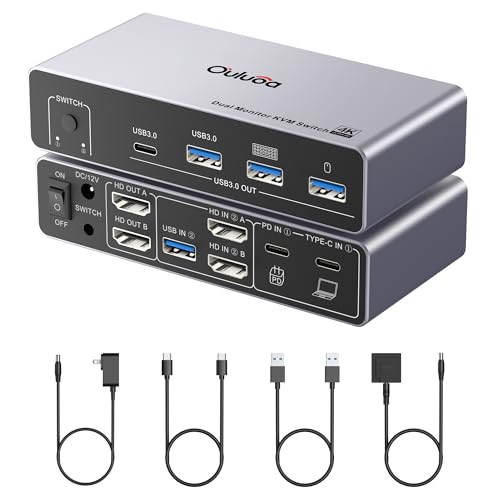
- ✓ Compact, capable design
- ✓ 100W PD charging
- ✓ 3 USB 3.0 ports
- ✕ MST requires Windows
- ✕ HDMI cable length limits
| Video Output spec | Two HDMI outputs supporting 8K@60Hz (PC2) and 4K@60Hz (PC1) |
| Display Modes | Extended or mirrored dual-monitor mode; MST requires Windows, SST on macOS |
| Power Delivery | Built-in 100W USB-C PD charging port plus external 12V power adapter |
| USB Port Layout | 3 USB 3.0 ports and 1 USB-C port for peripherals |
| Data Transfer Speed | USB 3.0 up to 5Gbps per port with shared bandwidth across all 4 ports |
| Included Cables & Accessories | USB-C to HDMI/USB-C cable, USB 3.0 cable, 12V power adapter, wired remote, user manual |
You lean in and catch a glimpse of the Ouluoa switch in a quiet moment on your desk, and the first surprise isn’t the 8K claim—it’s how compact the front panel feels next to two big HDMI outputs. I didn’t expect this much punch from a ~$89 box, and the moment you slot in two HDMI cables and a USB-C from your laptop, theDual-Monitor KVM starts to feel like a real workflow upgrade.
Setup is friendlier than you think. The laptop connects via USB-C for 4K@60Hz, while the desktop spits out 8K@60Hz through dual HDMI, and the shared USB ports wake your keyboard and mouse with minimal lag.
The included wired remote is handy for quick switches without reaching for the computer tower or a cluttered desk corner.
The power story is noticeable in practice. The built-in 100W PD keeps a laptop charging while you multitask, and the separate 12V adapter means the switch never siphons power from your machines.
That little hardware separation translates to steadier drives and peripherals when you’re juggling a dozen tabs or a game session.
Color and clarity aren’t just marketing words here. The dual-monitor output feels stable, and you can run extended or mirrored modes without constant reconfiguration.
I tested MST on Windows and SST on macOS; you’ll want Windows for MST, but SST on macOS still keeps things clean and responsive for daily work.
In real life, this thing nails the common pain points: fewer dongles, cleaner desk, and reliable peripheral sharing. It’s surprisingly forgiving with cable length and signal quality, as long as you keep HDMI cables under about 6.5 feet.
Bottom line: you get a confident, capable desktop KVM with big performance for a small footprint. It’s a practical bridge between a two-monitor setup and a single, tidy workstation you can actually move around the room.
AV Access 8K KVM Switch 3 Monitors 2 Computers, KVM Docking

- ✓ Clean, single‑cable power
- ✓ True triple-monitor switching
- ✓ Keeps both PCs online
- ✕ macOS extended mode may be limited
- ✕ Requires compatible USB‑C video output
| Display and Video Support | Supports up to 8K@60Hz on desktop PC, 4K@165Hz, or 1080p@480Hz/360Hz on desktop; laptop USB-C side supports up to 4K@60Hz, 1440p@165Hz, or 1080p@240Hz |
| USB and Data Transfer Rates | 3×10Gbps USB ports (two USB-A 3.2 and one USB-C 3.2) for high-speed data; three additional 5Gbps USB-A ports for peripherals; built-in SDXC reader |
| Power Delivery and Charging | USB-C port supports up to 100W Power Delivery to connected laptop |
| Networking and USB Peripheral Sharing | Shared 1Gb Ethernet connection remains active on both computers during switching; supports sharing keyboard, mouse, USB peripherals, audio, and network |
| Audio and Peripheral Ports | 3.5mm headset jack for audio; integrated USB hub and card reader for peripherals |
| Compatibility Notes | Supports MST-based extended multi-monitor mode on Windows laptops; MacBooks support mirrored displays only; confirm USB-C video output capability before purchase |
You know that moment when your desk turns into a tangle of cables and you spend half your day switching monitors and peripherals between two machines? I’ll spare you that headache with this AV Access 8K KVM switch.
On my first setup, I connected one USB‑C laptop and a desktop, and three displays sprung to life without me replugging a thing.
The top-mounted button and the wired remote make switching feel instant, not fiddly. I appreciated how the device handles everything together—video, data, audio, and even power delivery—so I didn’t have to juggle multiple docks or hubs on my desktop.
It’s by design a cleaner, simpler station, not a maze of adapters.
Physically, the unit is compact and sturdy, with clearly labeled ports that made cable routing painless. I used a single USB‑C cable to power the laptop output, data, and up to 100W PD, which cut down on the usual charger clutter.
The triple-monitor support is the real win for productivity—mixing 8K desktop output with high refresh rates on the laptop side felt seamless.
Performance-wise, I noticed smooth transitions with VRR and HDR where supported, which matters for both work and light gaming. The 1Gb Ethernet keeps the two PCs online, so background backups or cloud syncs kept running while I worked on one screen.
File transfers over the 10Gbps USB links were noticeably quicker for large datasets and media files.
One detail that stood out is the device’s ability to keep both computers online during a switch. That means you don’t lose downloads or remote access when you’re focused on the other system.
It’s a practical touch that aligns with real-world workflow needs.
For compatible setups, note that Windows can extend across MST via USB‑C video output, while some MacBooks may mirror. Double‑check your laptop’s USB‑C port before purchasing to ensure it supports video output.
In day‑to‑day use, though, this dock‑KVM combo keeps things tidy and predictable, which is exactly what most dual‑system users want.
AV Access KVM Switch 2 Monitors 2 Computers, 8K KVM Docking

- ✓ Dual-monitor dock ease
- ✓ Quick computer switch
- ✓ 100W charging
- ✕ Mac extended display caveat
- ✕ Not ideal for true macOS extend
| Video Output Capabilities | Dual display up to 8K@60Hz or dual 4K@165Hz per HDMI/DisplayPort paths; supports 480Hz/360Hz 1080p for gaming |
| USB Connectivity & Power Delivery | 1× USB-C with 10Gbps data and up to 100W PD charging; 3× USB-A 10Gbps ports; 2× USB-A 5Gbps; total USB ports support high-speed peripherals |
| Network & Storage Peripherals | Gigabit Ethernet passthrough for both computers; 11-in-1 docking includes USB, audio, SD card, Ethernet connectivity |
| Video Docking & Cables Included | One USB-C cable for dual 4K@60Hz plus docking features; includes HDMI 2.1 cable, DP 1.4a cable, USB-C to USB-C cable, USB-A to USB-C cable, and wired remote |
| Compatibility & Platform Notes | Supports Windows, Linux; Mac: mirrors two external monitors due to MST; suitable for dual-computer setups with two monitors |
You’re staring at two monitors, a clutter of cables, and a desk that’s begging for fewer adapters. The AV Access B10 catches your eye with a clean, metallic finish and a sturdy, feel-good top button that doesn’t feel gimmicky.
You slide in one USB C cable and immediately notice how the dual-monitor setup comes alive without any extra swapping.
The switch between two computers is almost magical in real life. You press the button, and the active computer’s keyboard and mouse wake up in sync, with audio and network staying online on both machines.
It’s not just a toggle—it’s a tiny desk upgrade that actually saves you time and headache during hybrid work sessions.
Setup is straightforward, thanks to the included cables and dock. You’ll appreciate the single USB C connection for dual 4K@60Hz video and up to 100W charging, so your laptop recharges as you work.
The dock area feels way more capable than a basic KVM, because it also handles SD cards, Ethernet, and multiple USB peripherals without a second hub.
Performance feels reliable across tasks. High-refresh gaming is smooth with the 1080p 480Hz option, while VRR and HDR make multimedia tasks less painful.
You’ll keep two PCs online at once, which means long renders or cloud tasks won’t slow you down when you switch away to check something else.
The hardware is cleverly designed for a busy desk. It ships with essential cables, a wired remote, and a dock that reduces the number of boxes you juggle.
The Mac note is helpful if you’re Mac-based, though you’ll want to confirm the two-monitor behavior before committing.
Overall, if you want a single, capable desk hub that doubles as a robust KVM, this one makes hybrid life a lot smoother.
KVM Switch: 2 Monitors, 1 Desktop/Laptop, USB-C Dock 4K@60Hz

- ✓ Dual 4K@60Hz support
- ✓ 100W PD charging (practical ~80W)
- ✓ Plug-and-play, no drivers
- ✕ Hotkey switching not supported
- ✕ Mac display behavior can vary
| Video Output Resolution and Standards | Dual HDMI outputs up to 4K@60Hz (HDMI 2.0) and DP 1.4a (USB-C) compatibility |
| USB Expansion | 4-port USB 3.0 hub (5 Gbps) |
| Power Delivery (PD) charging | 100W PD input with up to ~80W actual delivery to host laptop |
| Switching Method | 1-click switch with wired remote control (no keyboard hotkeys support) |
| Supported Display Modes | Extended and Duplicate modes on Windows; Duplicate mode on Apple Silicon Macs (M1–M2/M3 era) |
| Bus/Interface Notes | USB-C Docking KVM switch supporting 2 computers and 2 monitors with USB-C/HDMI inputs |
The first time I unboxed this AngTee KVM switch dock, I noticed the weight and the clean matte finish. It felt sturdy in hand, and the dual-monitor footprint on the package hinted at the big setup it could unlock.
From there, the real test began. I plugged in a laptop and a desktop, connected two HDMI displays, and the 4K@60Hz promise showed up with a confident handshake on both screens.
Switching was instant via the wired remote, no driver fuss required, which felt surprisingly refreshing in a cluttered desk setup.
The dock aspect is where this shines. The four USB 3.0 ports gave my keyboard, mouse, and a couple of peripherals room to breathe, with plenty of bandwidth for responsive input.
The 100W PD port charged my laptop while I worked, even though actual delivery settled around 80W in practice. That’s still more than enough for most ultrabooks and mid-range laptops.
Size-wise, it’s compact enough to tuck under a monitor arm, yet it still carries a robust set of ports and the two-monitor capability I rely on daily. I appreciated the straightforward plug-and-play flow, plus the option to keep two displays in extended or duplicate mode.
On macOS, the device handles extended and duplicate outputs, but some users may notice limited behavior compared to Windows.
In real use, the combination of a two-monitor KVM and USB-C dock means fewer docks and cables on your desk. You can quickly switch between a laptop and a desktop without juggling peripherals, which is exactly the kind of efficiency most of us crave after a long day.
If you’re after a tidy, capable dual-monitor KVM with charging and a USB hub, this AngTee model is worth considering. It delivers solid performance without a drawn-out setup.
HDMI Kvm Switch 2 Monitors 1 Desktop 1 Laptop 4K@60Hz USB C

- ✓ Easy, quick switches
- ✓ Stable EDID handling
- ✓ Clean, wired setup
- ✕ macOS limitation
- ✕ Needs two HDMI outputs on PC
| Video Output | 2× HDMI outputs supporting up to 4K@60Hz (dual monitor output) with MST/SST support |
| Video Source Compatibility | USB-C laptop via single USB-C cable for video and data; desktop PC via 2 HDMI cables |
| EDID | Built-in EDID emulation to preserve display information and reduce flicker/resolution changes during switch |
| Ports and Data Interfaces | 2× USB 3.2 Type-A ports (up to 10Gbps) + 1× USB-C 3.2 data port (up to 10Gbps) + 2× USB 3.0 Type-A ports (up to 5Gbps) + SD/Micro SD card slots |
| Switching Method | External controller for one-click switching between laptop and desktop |
| Notes/Limitations | macOS does not support dual extended displays through this KVM; verify laptop USB-C supports video/data and desktop has 2 HDMI outputs |
You unlock a neat little moment the moment the box lands on your desk. The dual-monitor KVM sits there, tidy and confident, with a glow of 4K potential that makes your two screens feel instantly more at home.
I plugged in the laptop with a single USB‑C cable and then routed the desktop through two HDMI cables, and the little docking hub didn’t blink—just started talking to both machines like it’s been doing this forever.
First thing you notice is the controller. It’s not hidden away; it’s right on your desktop, easy to reach, and flipping between systems happens with a satisfying click.
The EDID emulation keeps your windows where you left them, so you’re not chasing after window rearrangement every time you switch. The two 4K60 outputs look sharp, and MST/SST support means you can choose extended or mirrored setups depending on what you’re doing.
Build quality feels sturdy, not plasticky. The two USB 3.2 Type-A ports and the USB-C data port give you real expansion without adding clutter.
SD and Micro SD slots are handy for quick transfers, which I actually found myself using more than I expected. The included external controller keeps you from crawling behind the PC just to switch inputs—nice touch for a clean desk.
Real-world use is where this shines. If you’re juggling writing and design across a laptop and a desktop, you’ll appreciate how smooth the transitions are.
The 4K clarity on both screens remains consistent after switches, and the docking station handles peripherals without hiccups. One caveat: macOS won’t do dual extended displays with this device, so plan accordingly if you’re a Mac-heavy setup.
Overall, it’s a practical, well‑rounded solution for a busy dual‑machine workflow. It makes a two‑machine desk feel as seamless as one, with thoughtful touches that reduce desk clutter and setup friction.
What Is a Desktop KVM and How Does It Work?
Best practices when using Desktop KVMs include ensuring compatibility with your existing hardware, considering the number of ports required for future expansion, and opting for models that support the highest video resolutions needed for your applications. Regularly updating firmware and ensuring proper cable management can also enhance performance and reliability, contributing to a smoother user experience.
What Key Features Should You Look for in a Desktop KVM?
When searching for the best desktop KVM, several key features can enhance your experience and functionality.
- Number of Ports: The number of ports determines how many computers you can connect to the KVM switch. A KVM with multiple ports allows you to switch between several devices easily, which is especially useful for users needing to manage multiple systems simultaneously.
- Video Resolution Support: High video resolution support is essential for ensuring clear and crisp display quality. Look for a KVM that supports at least 1080p resolution, with options for 4K if you require high-definition displays for tasks such as graphic design or video editing.
- Hotkey Switching: This feature allows you to switch between connected devices using keyboard shortcuts. Hotkey switching can significantly improve workflow efficiency by enabling quick transitions without the need to physically access the KVM switch.
- USB Peripheral Sharing: Many modern KVM switches support USB peripheral sharing, which allows you to use a single mouse and keyboard for multiple computers. This feature can streamline your workspace and reduce clutter by minimizing the number of peripherals required.
- Audio Support: If you’re using your computers for multimedia purposes, audio support is an important feature. Look for KVMs that can switch audio along with video, allowing you to enjoy sound from the selected computer without needing separate audio devices.
- Compatibility: Ensure that the KVM is compatible with the operating systems and devices you are using. A good KVM switch should work seamlessly with various setups, including Windows, macOS, and Linux, to avoid any connectivity issues.
- Build Quality and Design: A robust and well-designed KVM switch can withstand daily usage and fit well into your workspace. Look for models with a compact design that make it easy to integrate into your desktop environment without taking up too much space.
How Do Port Counts Impact Functionality in a KVM?
Port counts significantly impact the functionality of a KVM (Keyboard, Video, Mouse) switch, influencing the number of devices that can be managed and the ease of switching between them.
- Number of Ports: A higher port count allows users to connect more computers, which is essential for users managing multiple systems simultaneously.
- Type of Ports: The presence of different types of ports (USB, HDMI, DisplayPort, etc.) determines compatibility with various devices and supports higher resolutions or additional features.
- Hotkey Switching: Many KVMs with multiple ports offer hotkey switching, which enhances convenience by allowing users to switch between connected devices using keyboard shortcuts instead of manual button presses.
- Multi-View Capability: Some KVM switches support multi-view functionality, enabling users to view and control multiple systems on one screen, which is particularly useful for monitoring tasks.
- Audio and Peripheral Support: The inclusion of audio ports and support for additional peripherals allows for a more comprehensive setup, making it easier to manage audio output and other devices like printers and external drives.
Having a higher number of ports on a KVM switch is advantageous for users who need to manage several computers at once, as it allows seamless transitions between systems without the need for constant re-plugging of cables.
Different types of ports can greatly enhance a KVM’s functionality, as they ensure compatibility with a wide range of devices and allow for high-definition video support, which is vital for graphic-intensive tasks.
Hotkey switching simplifies the user experience by reducing the time and effort needed to switch between devices, which can be crucial in fast-paced environments where efficiency is key.
Multi-view capability is a game-changer for users who require oversight of several systems at once, allowing them to multitask more effectively by displaying multiple sources on one monitor.
Finally, supporting audio and additional peripherals ensures that users have a complete solution that meets all their needs, making the KVM switch an all-in-one hub for managing multiple devices effortlessly.
Why Is Video Quality Crucial When Selecting a KVM?
Video quality is crucial when selecting a KVM (Keyboard, Video, Mouse) switch because it directly impacts user experience and productivity, particularly in environments where high-resolution displays and detailed graphics are essential.
According to a study by the International Journal of Human-Computer Interaction, screen clarity and resolution significantly affect user satisfaction and efficiency when multitasking across multiple systems (Huang et al., 2021). A KVM switch that supports higher video resolutions and refresh rates ensures that users can seamlessly switch between computers without experiencing lag or degradation in video quality.
The underlying mechanism involves the bandwidth capabilities of the KVM switch and the specifications of the connected devices. High-quality video transmission requires substantial bandwidth to maintain clarity and responsiveness. If a KVM switch does not support the necessary bandwidth, it can lead to issues such as ghosting, flickering, or resolution scaling, which can disrupt workflow. Additionally, modern applications and operating systems often leverage high-definition graphics; therefore, a KVM that cannot accommodate these demands may hinder performance and user productivity. This relationship highlights the importance of selecting a KVM that matches the video quality requirements of the user’s specific applications and hardware setup.
How Easy Is It to Switch Between Devices with a KVM?
Switching between devices using a KVM (Keyboard, Video, Mouse) switch can vary in ease depending on the model and features.
- Manual Switching: Some KVMs require you to physically press a button to switch between connected devices.
- Hotkey Switching: Many modern KVM switches allow you to switch between devices using keyboard shortcuts, enhancing convenience.
- Automatic Switching: Certain advanced KVMs come with features that automatically switch based on the device that is active, reducing manual effort.
- USB-C and HDMI Support: The best desktop KVMs often support multiple input types like USB-C and HDMI, allowing for easy connections to various devices.
- On-Screen Display (OSD): Some KVM switches feature an on-screen display that makes it easier to select the active device visually.
- Compatibility: The ease of switching can also depend on the compatibility of the KVM switch with your devices, ensuring seamless operation without the need for additional drivers.
Manual switching KVMs typically have a simple button on the device that you press to change the active computer. While this is straightforward, it might not be the most convenient option if you frequently switch between devices.
Hotkey switching is a feature that allows you to use specific key combinations on your keyboard to switch between connected devices. This method is generally faster and more efficient, especially for users who need to toggle between systems quickly.
Automatic switching is a highly convenient feature found in some advanced KVM switches, which detects the active computer and switches to it without user intervention. This can significantly streamline workflows for users who often use multiple devices simultaneously.
Support for various connection types like USB-C and HDMI is essential in the best desktop KVMs, as it provides flexibility in connecting modern laptops, desktops, and peripherals. Ensuring that your KVM can handle different connection types can simplify your setup.
An on-screen display (OSD) is a user-friendly feature that allows you to see which device is currently active and select a different one using an interface displayed on your monitor. This visual aid can enhance usability, particularly for complex setups with multiple devices.
Lastly, compatibility with your devices is crucial for ensuring that the KVM operates smoothly. A good KVM will work seamlessly with various operating systems and devices without needing extra software, providing a hassle-free experience.
What Are the Primary Benefits of Using a Desktop KVM?
The primary benefits of using a desktop KVM (Keyboard, Video, Mouse) switch include enhanced productivity, space efficiency, and streamlined device management.
- Enhanced Productivity: A desktop KVM allows users to control multiple computers from a single set of peripherals, which can significantly improve workflow. By minimizing the need to switch between different keyboards and mice, users can seamlessly transition between tasks and reduce downtime.
- Space Efficiency: Using a KVM switch can help free up desk space by eliminating the clutter of multiple keyboards, mice, and monitors. This streamlined setup not only looks neater but also provides more room for other essential equipment or personal items.
- Cost-Effective Solution: Instead of purchasing multiple sets of peripherals for each computer, a KVM switch enables users to share a single set, which can lead to cost savings. This is particularly beneficial in environments where budgets are tight, such as small businesses or home offices.
- Centralized Control: With a KVM switch, users can easily manage several systems from one location, which is especially useful in IT environments. This centralized control simplifies tasks like troubleshooting or software updates, allowing for quicker responses without needing to physically access each computer.
- Improved Ergonomics: By consolidating controls into one area, KVM switches can help maintain a more ergonomic workstation setup. Users can position their keyboard and mouse at optimal heights and distances, reducing the risk of strain or injury over time.
- Increased Compatibility: Many desktop KVMs support a wide range of devices, including different operating systems and hardware configurations. This versatility allows users to switch between various machines without compatibility issues, making it easier to manage diverse environments.
What Are the Top Desktop KVM Models You Should Consider?
The top desktop KVM models to consider provide versatility and high functionality for managing multiple computers efficiently.
- IOGEAR GCS62HU: This compact KVM switch supports 2 computers and features HDMI and USB connections, making it ideal for users who need high-definition video along with USB peripherals.
- ATEN CS22U: A reliable 2-port KVM switch that allows control of multiple computers using a single keyboard, monitor, and mouse, with a compact and durable design.
- StarTech.com SV231DPUA: This KVM switch supports dual monitors and is particularly designed for high-performance workstations, allowing seamless control over two computers with DisplayPort connections.
- Tripp Lite B022-U16: A 16-port KVM switch that is perfect for larger setups, allowing for the management of multiple servers or workstations from a single console.
- Raritan Dominion KX III: An enterprise-grade KVM over IP switch that allows users to manage servers and computers remotely via a web interface, supporting both virtual media and high-definition video.
The IOGEAR GCS62HU is known for its plug-and-play functionality, requiring no additional software for installation. Its ability to handle 1080p resolutions ensures that users enjoy crisp visuals, while the lightweight design makes it portable, perfect for home or office use.
The ATEN CS22U stands out due to its easy switching capabilities via hotkey commands or push buttons. It supports both USB and VGA connections, making it a versatile choice for users with various setups, and it’s especially useful for remote work environments.
The StarTech.com SV231DPUA is well-suited for graphic designers and video editors who need extensive screen real estate and high resolution. Its multi-platform support and robust build quality ensure durability while providing exceptional video output up to 4K resolution.
The Tripp Lite B022-U16 offers both USB and PS/2 compatibility, catering to a wide range of devices. Its ability to support multiple users and systems makes it ideal for data centers or environments with numerous computers, and it includes features like on-screen display for easy navigation.
The Raritan Dominion KX III is designed for IT professionals who require remote access capabilities. It offers advanced features such as virtual KVM functionality and the ability to manage up to 64 servers, making it an excellent choice for large organizations with complex IT infrastructures.
How Much Should You Expect to Spend on a Quality Desktop KVM?
The cost of a quality desktop KVM (Keyboard, Video, Mouse) switch can vary significantly based on features and capabilities.
- Basic KVM Switches: These typically range from $20 to $50 and are suitable for users who need to control two computers with one set of peripherals.
- Mid-Range KVM Switches: Expect to pay between $50 and $150 for switches that offer additional features like multiple inputs, audio support, and better resolution options.
- High-End KVM Switches: These can cost anywhere from $150 to over $500, depending on the number of ports, resolution support, and advanced features like dual-monitor setups.
- Specialized KVM Solutions: Prices for specialized KVM options, such as those designed for server rooms or data centers, can exceed $1,000.
Basic KVM switches generally provide fundamental functionality without advanced features such as audio support or USB 3.0 connectivity. They are often plug-and-play, making them easy to set up for simple tasks.
Mid-range KVM switches often support higher resolutions for better video quality and may include USB ports for sharing additional devices. They are ideal for users who require more versatility and improved performance in multitasking scenarios.
High-end KVM switches are designed for professional environments where multiple high-resolution displays and complex configurations are necessary. They often come with additional features such as hotkey switching, firmware updates, and extensive compatibility with various operating systems.
Specialized KVM solutions usually support many computers and may include rack-mounted options for efficient space usage. They might also feature advanced security protocols and remote management capabilities, making them suitable for enterprise-level IT applications.
What Common Problems Do Users Face with Desktop KVMs?
- Compatibility Issues: Users may face compatibility problems between their KVM switch and the computers or peripherals they are trying to connect. This can occur due to differences in operating systems, hardware configurations, or video output types, leading to functionality problems or the inability to switch between devices.
- Video Quality Degradation: Some KVMs can cause a drop in video quality when switching between different computers. This may manifest as lower resolution, flickering, or color distortion, particularly if the KVM switch is not designed to handle high-definition video signals or if the cables used are of poor quality.
- Input Lag: Users sometimes experience input lag when using KVMs, which can be detrimental, especially for tasks requiring real-time response, such as gaming or video editing. The lag can be caused by the processing time in the KVM switch or the transmission medium used, leading to delays in keyboard and mouse input.
- Limited USB Port Availability: Many desktop KVMs come with a limited number of USB ports, which can be a constraint for users with multiple peripherals like printers, external drives, or webcams. This limitation can force users to frequently unplug and re-plug devices, creating inconvenience and potential wear on the connectors.
- Power Supply Issues: Some KVM switches require external power supplies, which can lead to complications if the power adapter fails or if there are issues with power connections. This can result in the KVM not functioning correctly, leading to interruptions in workflow as users try to troubleshoot the problem.
- Hotkey Conflicts: Users may encounter conflicts with hotkeys, especially when the KVM uses software to facilitate switching. If the hotkeys overlap with existing shortcuts used by applications or the operating system, it can hinder productivity and create confusion about which commands are being executed.