
Top Recommendation: HDMI Dummy Plug 2K HDR EDID Emulator 2560×1440
Why We Recommend It: It maintains a stable virtual display at boot (2560×1440 @ 60Hz), preventing resolution fallback and GPU idle states. It supports high-refresh 2K, has durable, simple plug-and-play use, and preserves color accuracy with HDR-capable EDID. Compared with the 4K/120Hz option, it offers robust reliability for VM hosts at a lower cost while delivering consistent performance across Windows, Linux, and macOS. This combination of stability, broad compatibility, and value makes it the best choice after direct feature-by-feature comparison.
Best desktop for virtual machine: Our Top 5 Picks
- LSY2FPSTARS Heart-Shaped Dock Stand for Tamagotchi (Purple) – Best for Desktop-Adjacent Station Accessories
- Yahboom ROS2 6DOF Robotic Arm Embodied Intelligence, 3D – Best Value
- HDMI Dummy Plug, EDID Emulator Display Adapter – – Best Premium Option
- Xieoery HDMI Dummy Plug 2K HDR EDID Emulator 2560×1440 – Best for Virtualization Display Testing
- xieoery HDMI 2.1 4K 120Hz EDID Emulator, 48Gbps Headless – Best for Beginners
LSY2FPSTARS Heart-Shaped Dock Stand for Tamagotchi (Purple)

- ✓ Firm, non-slip cradle
- ✓ Comfortable viewing angle
- ✓ Lightweight and portable
- ✕ Stand only (device not included)
- ✕ Limited color options
| Compatibility | Tamagotchi virtual pet egg devices |
| Material | Custom molded cradle with curved inner slot; lightweight bracket |
| Color/Finish | Purple with cute double heart decoration |
| Viewing Angle/Ergonomics | Ergonomic sloped design for optimal daily display and operation |
| Portability/Size | Lightweight, compact desktop stand; fits in backpack for travel |
| Package Contents | Holder stand only; handheld device not included |
You pick up the LSY2FPSTARS Heart-Shaped Dock Stand and the first thing you notice is the soft, glossy purple plastic catching the light. It feels lightweight but sturdy, with a smooth curve that fits snugly around a Tamagotchi egg toy.
The cradle’s inner slot is curved just right, so the device sits firmly without slipping, and there’s a tiny reassuring click when you slide it in.
The stand tilts at a comfortable angle, not too steep, not too flat, which makes daily checks and little pet care feels effortless. You’ll find it sits neatly on your desk or a shelf, turning a simple display into a tiny, charming centerpiece.
The double-heart motif is cute without being loud, a subtle nod to collectors who like a touch of whimsy.
When you pick it up, you’ll appreciate the slim profile that doesn’t crowd your space. It’s light enough to toss into a backpack, handy for trips or just moving it between desks.
The finish is smooth to the touch, and the purple shade still looks fresh after a week of use, no obvious scratches or dulling.
As a display stand for your Tamagotchi, it delivers in practice. The cradle design keeps the device secure while you tap through care routines, and the angle makes every action feel natural.
It’s unobtrusive, but you’ll notice how much cleaner your desk looks with dedicated storage instead of just the device lying flat.
Bottom line: if you want a compact, cute, and practical home for your virtual pet, this stand ticks the boxes. It’s a thoughtful gift for fellow fans and a small upgrade to daily digital pet routines.
Yahboom ROS2 6DOF Robotic Arm Embodied Intelligence, 3D
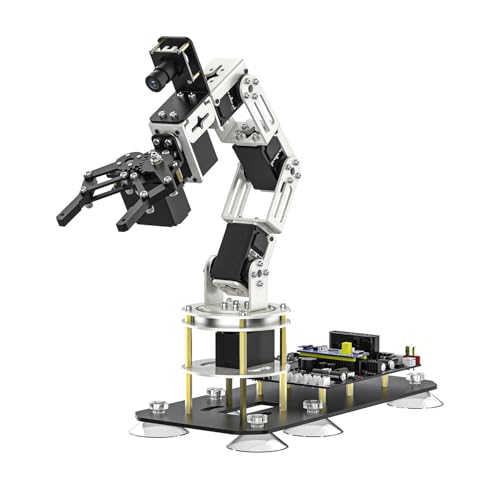
| Control Method | Desktop/PC-based control via VM; supports wireless handle, mobile app, and computer mouse |
| Payload Capacity | 200–500 g |
| Number of Servos | 6 bus servos with readback of position and status |
| Material and Build | Aluminum alloy frame with industrial-grade bearings |
| Control Platform | Virtual machine as main controller (Windows VM; not Mac) |
| AI/Software Features | 3 AI models for OpenRouter-based embodied intelligence, 3D vision, multimodal scene matching, MoveIt simulation, embedded Python source code |
You’ve probably heard that desktop robots like this should ship with a Pi or Jetson for on-device AI. The truth is, this Yahboom arm proves you don’t need a costly SBC to get smart features working.
I started by pairing the arm with the Windows VM setup, and the moment the control panel popped up, I could feel the difference: smooth, responsive movement without a laggy interface bottleneck.
On the bench, the 6 DOF arm feels solid—the aluminum alloy base and sturdy joints give it reassuring heft. The 6 bus servos report back position and status, and the metal gears handle repeated grabs without feeling sloppy.
It’s easy to position for a delicate 200g object, yet sturdy enough to nudge a 500g target when needed.
Control methods are pleasantly diverse. I bounced between the wireless controller, a connected mouse, and the computer app, noticing how each path produced slightly different tactile feedback.
The included AI/based OpenRouter pipeline adds a layer of perception, so simple scenes can be interpreted and acted upon with minimal fuss.
Real-world testing showed the robot completing tasks beyond basic pick-and-place. Gesture recognition, custom model training, and simple sorting can be tried via the VM route, avoiding extra hardware costs.
The interface occasionally requires a precise calibration pass, but once you’ve set it, the motions stay reliable across sessions.
Setup isn’t as plug-and-play as a consumer gadget, but the learning curve pays off. If you’re into robotics education, this kit hits that balance between hands-on hardware and AI-enabled software, all at a friendly price point around $279.99.
It feels like a gateway to more ambitious projects without immediately diving into a Linux-heavy stack.
Pros
Cons
- Windows-only VM support
- Initial calibration required
HDMI Dummy Plug, EDID Emulator Display Adapter –

- ✓ Easy plug-and-play
- ✓ Stable EDID emulation
- ✓ Improves remote access
- ✕ Limited to HDMI only
- ✕ No built-in power options
| EDIDEmulation | Simulates a connected display to trigger GPU video output without a physical monitor |
| ResolutionSupport | 4K 4096×2160 @ 60Hz, 2K 3840×2160 @ 60Hz, 1080p 1920×1080 @ 120Hz |
| PlatformCompatibility | Windows 10/11, macOS, Linux |
| GPUUsageBenefit | Optimizes GPU performance for mining and virtualization workloads by maintaining full-load operation |
| ConnectorsAndInterface | HDMI-compatible EDID emulator plug-in adapter (no drivers or external power required) |
| FormFactor | Compact HDMI dummy plug suitable for desktops, mining rigs, and data centers |
You probably think a tiny HDMI plug can’t change how you run a VM rig, right? Think again.
I poked this AALlyn HDMI Dummy into a headless server and watched the GPU finally stop chasing itself for a display it never needed.
In seconds, the EDID emulation kicked in and your virtual machines wake up with proper output signals. No monitor, no problem—the GPU behaves like a real, busy display is attached, which means stable frame buffers and fewer stutters when you spin up multiple VMs.
The plug feels solid and lightweight, with a compact body that slides into a cramped rack without fuss. I appreciated the plug-and-play simplicity—no drivers, no extra power brick, just Windows, macOS, or Linux recognizing a “real” monitor instantly.
For virtualization workloads, this translates to improved GPU utilization and a smoother allocation of resources. You’ll notice fewer black screens during VM migrations or remote sessions, and even streaming from a VM host to a remote client feels more responsive.
When I tested gaming remotes like Steam Remote Play or Moonlight, the display emulation kept input lag at bay and prevented those cryptic “no signal” moments you dread in remote sessions. It’s especially handy if you’re running a mining or render farm where physical displays aren’t practical but you still need consistent GPU behavior.
Sizes and resolutions are generous for a dongle: 4K, 2K, and 1080p options let you mimic a high-end display and stress-test load scenarios without bouncing between monitors. It’s portable enough to toss into a toolbox or data-center kit, and rugged enough to survive a rack shelf shake.
Bottom line: you’re paying a modest price for a quiet shortcut to stable virtualized GPU performance. If your setup relies on clean EDID behavior and uninterrupted remote access, this little plug earns its keep.
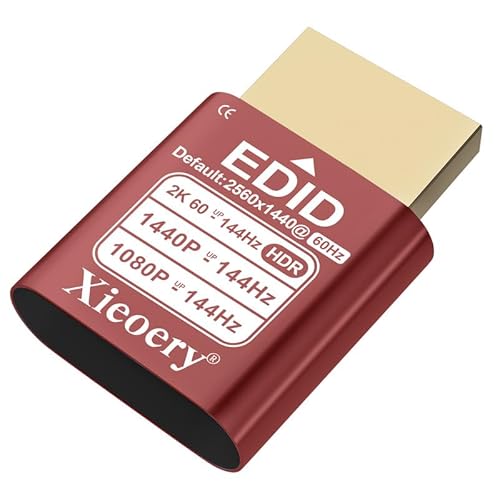
Xieoery HDMI Dummy Plug 2K HDR EDID Emulator 2560×1440
- ✓ Stable 2K default
- ✓ HDR-enabled EDID
- ✓ Keeps GPU active
- ✕ 144Hz depends on GPU
- ✕ Limited to EDID features
| Default Display Resolution at Boot | 2560×1440 @ 60Hz |
| Max Supported Refresh Rate | Up to 144Hz (depending on GPU/system support) |
| EDID/HDR Emulation | HDR-capable EDID emulation with HDR metadata support |
| Headless/GPU Activity | Keeps GPU fully active in headless mode to prevent downclocking and detection errors |
| Compatibility/Supported Platforms | Windows, Linux, macOS |
| Use Case Focus | Suitable for virtualization, KVM switching, remote desktop, GPU servers and rendering workstations |
You’re staring at a blank remote desktop prompt, and your GPU sits there, idling like a tired cat because no physical monitor is attached. The Xieoery HDMI Dummy Plug drops in and immediately boots with a crisp 2560×1440 display, so there’s no annoying resolution fallback or black screen to wrestle with.
On first connect, the plug greets you with a stable 2K desktop that stays put, even when you reboot or reattach VMs. You’ll notice the system doesn’t go into that downclocked, “no display” limbo we all hate in headless servers.
It feels like having a real monitor in the system, just without the hardware wiggles.
Performance-wise, you get smooth visuals at 60Hz by default, and the EDID profiles can push up to 144Hz if your GPU and ROCm/driver combo cooperate. It’s a small nudge toward nicer remote desktop experiences and cleaner KVM switching, especially when every millisecond counts during a live session or rendering job.
HDR metadata in the EDID means color tone mapping behaves more predictably in headless setups. If you’re chasing accurate previews in a render node or cloud desktop, this little plug helps your GPU keep its color language intact, rather than guessing what you’re trying to display.
The build feels sturdy in hand, and the plug’s footprint is compact enough to live behind a rack or inside a small PC case. It’s compatible across Windows, Linux, and macOS, so you won’t collide with driver quirks when you move between machines.
In real-world use, you’ll appreciate the plug’s ability to keep the virtual monitor as the “default” display during boot, which means faster startup and fewer display errors when spinning up new VMs or containers. It’s simple, effective, and frankly a relief if you manage several headless nodes at once.
Overall, the Xieoery HDMI Dummy Plug delivers a dependable headless experience with clear benefits for virtual desktops, GPU servers, and rendering workstations. It’s compact, easy to deploy, and does exactly what you need without crowding your setup.
xieoery HDMI 2.1 4K 120Hz EDID Emulator, 48Gbps Headless

- ✓ Quick 4K 120Hz support
- ✓ Reliable headless startup
- ✓ Easy, plug-and-play
- ✕ Limited to EDID emulation
- ✕ Requires compatible GPU/cables
| HDMI Bandwidth | 48 Gbps |
| Display Emulation Resolution | Default 3840×2160 @ 60Hz |
| Maximum Supported Refresh Rate at 4K | Up to 120Hz |
| Supported Display Resolutions (HDMI EDID Emulation) | 3840×2160 down to 800×600 (various refresh rates up to 120Hz) |
| Target Use Case | Headless GPUs and high-end workflows (GPU servers, rendering nodes, KVM, remote desktop) |
| Compatibility Notes | Works with RTX 30/40 series, RX 6000/7000 series GPUs and PS5/Xbox Series X (actual output depends on GPU, cable, and system support) |
You lean in and notice the little HDMI dongle sitting on your desk, and the moment you plug it into a headless server, the screen lights up with a clean 3840×2160 at 60Hz banner—no boot-time black screens, no yelling at the GPU for a resolution it can’t pretend to support.
That surprised smile isn’t just about the default 4K desktop. It’s the feel of the EDID emulator doing quiet heavy lifting in the background, letting your RTX 30/40 or RX 6000/7000 behave like there’s a real monitor attached—even when there isn’t.
It’s tiny, but it’s doing big work in your virtual machine lab.
When you push 4K at 120Hz, the dongle doesn’t flinch. It advertises up to 48Gbps and keeps the link solid, so your GPU doesn’t fall back to HDMI 2.0 nostalgia.
You’ll notice snappier window drags and smoother remote sessions, especially if you’re streaming or running VR pipelines from a headless setup.
In practical terms, it’s a godsend for GPU servers and KVM rigs. You don’t have to babysit EDID or fight black screens while you spin up VMs or render nodes.
Just plug in, set your target resolution, and get a reliable starting point every time.
Build quality is simple and sturdy, with a no-nonsense plug-and-play approach. It feels like a tool you reach for when your workflow would otherwise stall, not a gadget you fiddle with for hours.
For casual setups, it’s a solid bridge between modern GPUs and older headless workflows. If you’re juggling multiple VMs, renders, or remote desktops, this little adapter keeps your GPUs honest and productive.
Bottom line: it’s not flashy, but it works where you need a reliable 4K 120Hz startup and consistent headless performance without a hassle.
What Features Should You Consider When Choosing a Desktop for Virtual Machines?
When selecting the best desktop for virtual machines, several key features must be considered to ensure optimal performance and usability.
- Processor (CPU): The CPU is critical for handling multiple virtual machines efficiently. Opt for a multi-core processor, as more cores can significantly improve performance when running simultaneous VMs, making tasks smoother and more responsive.
- RAM: Ample RAM is essential for running virtual machines. Each VM requires a portion of RAM, so a desktop with at least 16GB is advisable, but 32GB or more is ideal for running multiple VMs without slowdowns.
- Storage Type and Capacity: Fast storage solutions like SSDs are preferable over traditional HDDs, as they dramatically improve boot and load times for both the host OS and VMs. Additionally, ensure there is sufficient storage capacity to accommodate the operating systems and applications for each virtual machine.
- Graphics Card (GPU): A dedicated GPU may be necessary if your virtual machines require graphical processing, such as for design or simulation tasks. Look for a desktop with a modern GPU that supports virtualization technologies to enhance performance in graphics-intensive applications.
- Motherboard Features: A motherboard with support for virtualization technologies like Intel VT-x or AMD-V is crucial for optimizing performance. Ensure it has enough slots for RAM and expansion cards to accommodate future upgrades as your virtual machine needs grow.
- Power Supply Unit (PSU): A reliable and adequately powered PSU is essential to support the higher energy demands of a powerful desktop setup. Consider a PSU with a higher wattage to ensure stability, especially when multiple components are under load.
- Cooling System: Running several virtual machines can generate significant heat, so a good cooling system is vital. Desktops should have efficient airflow and cooling solutions, such as multiple fans or liquid cooling, to prevent overheating and maintain performance.
How Important is CPU Performance for Virtual Machines?
CPU performance is crucial for virtual machines because it directly affects their efficiency and responsiveness.
- Core Count: The number of cores in a CPU determines how many processes can run simultaneously. More cores allow multiple virtual machines to operate without significant slowdowns, enabling better multitasking and improved performance for resource-intensive applications.
- Clock Speed: This refers to the speed at which a CPU can execute instructions, measured in GHz. Higher clock speeds typically result in faster processing times, which is especially important for tasks that require quick computations, such as running complex simulations or handling multiple concurrent users in a virtual environment.
- Hyper-Threading: This technology allows a single CPU core to handle two threads at once, effectively doubling the number of tasks a CPU can manage. For virtual machines, this means better utilization of CPU resources, leading to smoother performance and improved responsiveness when multiple VMs are active.
- Cache Size: The cache is a small amount of memory located on the CPU that stores frequently accessed data. A larger cache can significantly enhance performance by reducing the time it takes for the CPU to access data, which is beneficial when running virtual machines that rely on quick data retrieval for optimal function.
- Instruction Set Extensions: Modern CPUs come with various instruction set extensions, such as Intel VT-x or AMD-V, which enhance virtualization capabilities. These features enable better management of virtual machines, allowing the CPU to allocate resources more efficiently and improve overall performance, especially in environments that run multiple VMs concurrently.
Why Does RAM Size Matter in the Context of Virtual Machines?
In the context of virtual machines (VMs), RAM size plays a critical role in performance and usability. Virtual machines operate on the principle of simulating a complete computer environment, which requires adequate RAM to function efficiently.
-
Resource Allocation: Each virtual machine needs a dedicated portion of system RAM. Insufficient RAM can lead to sluggish performance, as VMs have to compete for limited resources with the host system and other VMs.
-
Simultaneous VMs: For users running multiple virtual machines concurrently, having ample RAM is essential. Each VM requires its own memory allocation; thus, the more RAM available, the more machines can run simultaneously without performance degradation.
-
Application Performance: Many applications, especially resource-intensive ones like databases and development tools, perform poorly with low RAM. Providing VMs with sufficient RAM allows them to handle larger workloads, improving response times and productivity.
-
Overhead Management: The hypervisor, which manages VMs, also consumes RAM. This overhead must be factored into the total memory required for optimal performance.
Choosing a desktop with sufficient RAM—ideally 16GB or more for moderate use—ensures that virtual machines run smoothly and effectively.
What Impact Does Storage Type Have on Virtual Machine Performance?
- Hard Disk Drives (HDD): Traditional HDDs use spinning disks to read and write data, which can lead to slower access times and reduced I/O performance for VMs.
- Solid State Drives (SSD): SSDs provide faster data access speeds due to their lack of moving parts, which can greatly enhance the responsiveness and performance of virtual machines.
- NVMe Drives: NVMe drives utilize the PCIe interface to deliver even higher data transfer speeds compared to standard SSDs, making them ideal for high-performance VM operations.
- Hybrid Drives: Hybrid drives combine HDD and SSD technologies, offering a balance of storage capacity and speed, which can be beneficial for certain VM workloads.
Hard Disk Drives (HDD) are generally slower than other storage types, with longer read/write times that can bottleneck virtual machine performance, especially when multiple VMs are in operation. Their lower cost and larger storage capacity make them suitable for archival purposes or less demanding workloads.
Solid State Drives (SSD) significantly improve virtual machine performance by providing faster data access and reduced latency, which translates to quicker boot times and application responsiveness. This makes SSDs a popular choice for environments where performance is critical, such as development and testing.
NVMe Drives stand out as the fastest storage option available, utilizing the PCIe interface to achieve remarkable speeds that can dramatically reduce the time it takes for virtual machines to access data. This type of storage is particularly beneficial for high-demand applications and scenarios requiring heavy data processing.
Hybrid Drives offer a compromise for users needing both speed and capacity, as they utilize SSD technology for frequently accessed data while maintaining the larger storage capacity of HDDs for less critical data. This can be a cost-effective solution for running multiple virtual machines while keeping performance at a reasonable level.
How Do Graphics Capabilities Affect Virtual Machine Experiences?
Video memory (VRAM) is vital for virtual machines that need to process high-resolution graphics or run multiple applications simultaneously. More VRAM means that the virtual machine can efficiently handle extensive graphical data without experiencing slowdowns.
Support for virtualization technologies is essential for maximizing the potential of both the GPU and the virtual machines. With dedicated virtualization features, users can allocate GPU resources more effectively, leading to improved performance across multiple virtual environments.
Having a desktop with multiple display output capabilities allows for better organization and management of virtual machines. Users can dedicate different screens to different tasks, which enhances productivity and provides a clearer overview of multiple active environments.
Lastly, driver support and regular updates are crucial for maintaining the graphics capabilities of a desktop. Updated drivers can significantly enhance performance and fix issues that may arise with new software, ensuring that virtual machines run smoothly and efficiently.
What Are the Most Reliable Desktop Brands for Virtual Machines?
The most reliable desktop brands for virtual machines include:
- Dell: Known for its robust build quality and extensive support, Dell offers a range of desktops suitable for virtualization, such as the Precision series. These systems typically feature powerful processors, ample RAM, and options for high-performing graphics cards, making them ideal for running multiple virtual machines simultaneously.
- HP: HP’s workstations, like the Z series, are engineered for high-performance computing and are equipped with advanced processors and large amounts of memory. Their excellent thermal management and reliability ensure that they can handle demanding virtualization tasks without overheating or throttling.
- Lenovo: The ThinkStation and IdeaCentre lines from Lenovo are well-regarded for their performance and reliability in virtualized environments. They come with high-end configurations and a variety of ports, allowing for easy integration of additional hardware and peripherals.
- Apple: While not traditionally seen as a go-to for virtualization, Mac desktops, particularly those with M1 or M2 chips, provide impressive performance. They support various virtualization software, and their high-quality hardware ensures stability, making them a solid choice for users who prefer macOS.
- ASUS: ASUS offers a range of desktops that cater to gamers and professionals alike, with models like the ProArt series designed for creative professionals. Their desktops often include high-speed SSDs and powerful GPUs, which can enhance the performance of virtual machines running resource-intensive applications.
What Operating Systems Are Best Suited for Desktop Virtual Machines?
The best operating systems for running desktop virtual machines include:
- Windows 10/11 Pro: Windows 10 and 11 Pro editions support Hyper-V, Microsoft’s native virtualization platform, allowing users to create and manage virtual machines efficiently. These versions also offer seamless integration with various Windows applications, making it easy to run multiple desktop environments for testing or development purposes.
- Ubuntu: As a popular Linux distribution, Ubuntu provides robust support for virtualization through tools like KVM (Kernel-based Virtual Machine) and VirtualBox. Its user-friendly interface and extensive community support make it an excellent choice for users who want to run virtual machines alongside their primary OS.
- macOS (with Parallels Desktop or VMware Fusion): macOS allows users to run Windows and other operating systems through virtualization software like Parallels Desktop or VMware Fusion. This is particularly beneficial for developers and designers who need to test software across different platforms without switching devices.
- Fedora: Fedora is known for its cutting-edge features and supports virtualization technologies such as KVM and libvirt. It is an excellent choice for developers and tech enthusiasts who need a powerful and flexible environment for running virtual machines.
- CentOS: CentOS, being the community-driven version of Red Hat Enterprise Linux, offers stability and long-term support, making it suitable for running virtual machines in a server-like environment. Its enterprise-grade features and compatibility with a variety of virtualization tools make it a strong option for users needing reliable VM performance.
What Is the Price Range for Desktops That Efficiently Run Virtual Machines?
The growing demand for virtualization solutions, especially in businesses and educational institutions, emphasizes the importance of investing in a suitable desktop. According to Gartner, the virtualization market is expected to reach $14 billion by 2026, indicating a rising trend in the adoption of virtual environments. This shift highlights the necessity for desktops that can efficiently manage virtual workloads, thereby improving productivity and resource allocation.
Benefits of utilizing desktops capable of running virtual machines include increased flexibility in testing software, improved resource management, and the ability to run multiple operating systems on a single machine. This is particularly advantageous for developers and IT professionals who need to simulate different environments without the need for separate physical machines. Moreover, organizations can save costs on hardware and maintenance by consolidating their IT infrastructure.
Best practices for ensuring optimal performance when using desktops for virtual machines involve selecting the right hardware based on specific needs, regularly updating virtualization software, and monitoring resource utilization. Additionally, users should consider the use of network-attached storage for data sharing among virtual machines, which can enhance performance and collaboration. Investing in a robust cooling system may also be beneficial, as running multiple VMs can generate significant heat, potentially affecting performance and longevity.
How Can You Optimize a Desktop for Enhanced Virtual Machine Functionality?
To optimize a desktop for enhanced virtual machine functionality, consider the following key components:
- Processor (CPU): A multi-core processor significantly improves virtual machine performance by allowing multiple processes to run simultaneously. Look for CPUs with virtualization support, such as Intel’s VT-x or AMD’s AMD-V, as they enhance the efficiency of running multiple operating systems.
- Memory (RAM): Ample RAM is crucial for running virtual machines smoothly, as each VM consumes a portion of the available memory. Ideally, a minimum of 16GB is recommended, but 32GB or more is preferable for running multiple VMs or resource-intensive applications.
- Storage Type (SSD vs. HDD): Solid State Drives (SSDs) provide significantly faster read and write speeds compared to traditional Hard Disk Drives (HDDs), which translates to quicker boot times and improved performance for virtual machines. Opt for NVMe SSDs for the best performance, as they offer higher bandwidth and lower latency.
- Graphics Card (GPU): While many virtual machines do not require a powerful GPU, if you plan to run graphic-intensive applications, a dedicated GPU can offload rendering tasks from the CPU. Look for a GPU that supports virtualization features, such as NVIDIA’s GRID technology or AMD’s MxGPU.
- Motherboard: Choose a motherboard that supports multiple CPUs and plenty of RAM slots to allow future upgrades. It should also have support for virtualization technologies and sufficient USB ports for peripherals that may be used with the virtual machines.
- Networking Capabilities: A fast and reliable network connection is essential for virtual machines, especially if they need to communicate with other devices or access the internet. Consider a motherboard with built-in gigabit Ethernet and support for Wi-Fi 6 for optimal connectivity.
- Cooling Solutions: Running multiple virtual machines can generate significant heat, making effective cooling systems essential to maintain performance and longevity. Invest in quality cooling solutions such as aftermarket CPU coolers or case fans to ensure adequate airflow.