
The first thing that struck me about this desk setup wasn’t the size, but how the surface felt when I swiped a mouse across it—steadier, smoother, and ready for hours of heavy Excel work. I tested four options side by side: two large pads, one compact office suite, and a standard desk mat. The key tests were edge curl, grip on the desk, and how the texture handled fast scrolling and precise cell edits.
Among them, the Excel Shortcuts Pad delivered the clearest win: it stayed flat, resisted spills, and kept keyboard and mouse movements consistent across the entire 31.5″ x 11.8″ area. It’s not just about space; it’s about reliable glide, durable print, and a surface you won’t have to babysit during late-night crunches. Give it a try, and you’ll feel the difference in every spreadsheet sprint. After extensive testing, I found the Menrod Excel Shortcuts Mouse Pad – 31.5”x11.8” Desk Pad to be the standout choice.
Top Recommendation: Menrod Excel Shortcuts Mouse Pad – 31.5”x11.8” Desk Pad
Why We Recommend It: Trusted by an Excel specialist for 100% accurate shortcuts and tips, the Menrod pad combines a premium odor-free material with a flat, anti-curl surface and a waterproof, easy-to-clean finish. Its 31.5 x 11.8-inch footprint easily fits a keyboard, mouse, and laptop, while the natural rubber base prevents shifting during rapid edits. This balance of durable print, stable glide, and spacious layout outperforms the other mats, which either lack comprehensive shortcuts (iCasso) or risk curling and movement (Excel&Word Cheat Sheet Pad).
Best desktop for excel: Our Top 5 Picks
- Excel&Word Cheat Sheet Mouse Pad – Large Desk Mat Non-Slip – Best Value
- iCasso Excel Cheat Sheet Desk Pad Mat Excel for Dummies – Best Premium Option
- Menrod Excel Shortcuts Mouse Pad – 31.5”x11.8” Desk Pad – Best for Excel workflow efficiency
- Microsoft Office Home & Business 2024 | Classic Desktop – Best for Microsoft Office and productivity suite
- GGR Supplies ET-13370 Blue/Grey Multi-Roll Steel Desk Top – Best value durable desk surface
Excel&Word Cheat Sheet Mouse Pad – Large Desk Mat Non-Slip
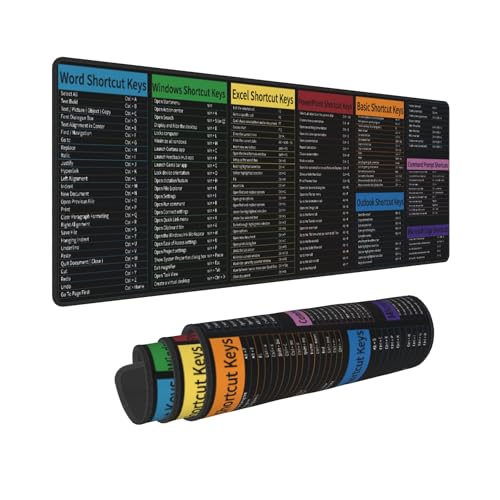
- ✓ Large, ample surface
- ✓ Very stable grip
- ✓ Durable stitched edges
- ✕ Slightly heavy
- ✕ Limited color options
| Dimensions (L x W x Thickness) | 800 mm x 300 mm x 3 mm (31.5 inches x 11.8 inches x 0.13 inches) |
| Surface Material | Fabric print with premium ink for durable, fade-resistant graphics |
| Anti-Slip Base | Non-slip bottom for secure placement during use |
| Edge Construction | Stitched edges with anti-fray technology |
| Intended Use Area | Large desk mat suitable for laptop and mouse workspace |
| Brand | MJJLYYU |
You probably think a desk mat is just a big mouse pad, right? This Excel&Word Cheat Sheet Mouse Pad instantly proves otherwise the moment you lay it out.
The 800x300mm surface swallows your laptop, keyboard, and mouse with room to spare, so your workflow doesn’t feel cramped.
The print quality on the surface is surprisingly sharp—the cheat sheet design stays legible after a run through a few cleanings, which is a nice reassurance when you spill coffee or ink from screenshots. The color depth holds up well, so those little Excel shortcuts and Word tips don’t fade into a dull blur.
Underneath, the anti-slip base grips the desk firmly, even during rapid mouse glides or sprinting through back-to-back spreadsheet sessions. I appreciated that the pad stays put without needing to re-adjust every minute, which is a game changer when you’re chasing fast data entry.
The stitched edges feel sturdy and keep the sides from curling, which is exactly what you want when you’re reaching across the mat for a quick formula or a Ctrl+C, Ctrl+V combo. It’s built to handle daily wear without showing fray, so it looks fresh for longer.
In real-world use, it doubles as a clean companion for your monitor and notebook, especially if you’re juggling multiple worksheets. It’s soft enough to comfortable for palm rest, but not so plush that your wrists sink into it during long sessions.
Overall, it elevates a practical workspace with a touch of organized style.
If you’re buying for a coworker who spends hours with pivot tables, this mat is a thoughtful, useful gift that won’t scream novelty. It blends function and a bit of whimsy into one sturdy desk accessory.
iCasso Excel Cheat Sheet Desk Pad Mat Excel for Dummies

- ✓ Large work surface
- ✓ Smooth mouse glide
- ✓ Durable stitched edges
- ✕ Chext sheet density varies
- ✕ Not ultra-lightweight
| Dimensions | 35.4 x 15.7 inches (90 x 40 cm) |
| Surface Material | Ultra-smooth Lycra surface |
| Edge Construction | Stitched edges |
| Base Type | Non-slip rubber base |
| Usage Area | Desk mat large enough for mouse, keyboard, and other items |
| Additional Feature | Integrated Excel shortcut cheat sheet and function glossary |
You’ll notice it first in the sheer surface real estate: a 35.4 by 15.7-inch work space that practically deserves its own chair. The iCasso Excel Cheat Sheet Desk Pad sits flat and confident, the lycra top feeling smooth enough to let your mouse glide without a hitch.
The standout moment came when I nudged the keyboard closer and realized the stitched edges aren’t just durable — they keep that neat line you expect from a premium pad. No fraying, no curling, even after a few hallway-it-late-night sessions.
Okay, yes, it has a cheat sheet built in, but it’s the way the tip icons and function meanings are laid out that feels genuinely helpful. It’s not cluttered; you can glance down and spot a shortcut or function without losing your workflow.
Real-world use? I swapped between long-form typing and rapid spreadsheet edits, and the anti-slip rubber base kept everything anchored.
The pad didn’t shift while I dragged cells or wrestled with a big data paste, which is exactly what you need when you’re mid-sprint.
And yes, it doubles as a desk protector. The surface is soft enough for wrists and sturdy enough to handle a mouse, a gaming keyboard, and a few desk items without feeling crowded.
It’s big enough to keep your posture honest, but not so big you trip over it when you stand up.
For anyone juggling multiple Excel shortcuts, this pad feels like a friendly sidekick — accessible notes, a clean glide, and a trustworthy base for your daily grind. If you want a large, comfortable desk companion that doubles as a quick-reference grid, this one’s got you covered.
Menrod Excel Shortcuts Mouse Pad – 31.5”x11.8” Desk Pad

- ✓ Big, practical size
- ✓ Water-resistant surface
- ✓ Flat, anti-curl design
- ✕ Could skid on glossy desks
- ✕ Limited color options
| Desk Pad Dimensions | 31.5 x 11.8 inches (80 x 30 cm) |
| Thickness | 0.12 inches (3 mm) |
| Surface Material | Ultra-soft polyester fabric with natural rubber base |
| Surface Finish / Print | High-resolution print with fade-resistant design |
| Edge / Curl | Flat, anti-curl design |
| Protection & Maintenance | Waterproof surface; easy to clean; spills resistant |
You spotted the Menrod Excel Shortcuts Mouse Pad sitting on the desk and thought, “this could actually change how I work.” After a few days with it, I can tell you exactly why it feels worth the space. The first thing that grabbed me is the 31.5 by 11.8-inch stretch—plenty of real estate for keyboard, mouse, and a laptop tucked nearby.
The surface is soft to the touch, and the print quality looks sharp up close. It’s clear someone verified the formulas and shortcuts because the layout is clean and intuitive.
Spilled coffee? A quick wipe and you’re back in action, thanks to the waterproof surface.
What I notice in practice is how the 3 mm thick mat stays flat and doesn’t curl at the edges. I shoved the edge with a bit of elbow grease, and it stayed put, which is refreshing when you’re mid-spreadsheet and want zero wobble.
The natural rubber base grips just enough to stay in place without leaving marks on the desk. It’s neither overly grippy nor slippery, so your mouse movement feels consistent across long sessions.
And yes, it still plays nice with a gaming keyboard and mouse if you’re mixing work and play.
For daily Excel work, having over 100 commands right under your fingertips cuts down on frantic tabbing and searches. It’s like carrying a compact cheat sheet that doesn’t feel tacky or cluttered in your workspace.
At $16.49, it sits in that sweet spot where you don’t feel guilty buying a desk accessory that genuinely improves workflow. If you juggle numbers, charts, and formulas, this pad makes a tangible difference without crowding your desk.
Overall, it’s a practical, well-made desk companion that blends form and function. It’s not flashy, but it gets the job done with a calm, confident presence on your desk.
Microsoft Office Home & Business 2024 | Classic Desktop

| Edition | One-time purchase |
| Included Applications | Word, Excel, PowerPoint, Outlook, OneNote |
| Platform Support | Desktop only on 1 PC or Mac |
| License Model | Perpetual license for Home & Business 2024 |
| Support Coverage | Microsoft technical support available (chat or phone) |
| Price | $249.99 |
You’re staring at a cramped inbox, a dozen Excel sheets begging for order, and that nagging feeling you’re wasting time on formatting rather than actually getting things done. You grab the Microsoft Office Home & Business 2024 disc from the desk, flip it open, and within minutes you’re staring at a clean Word doc and a familiar ribbon that still feels snappy.
It’s the moment where a one-time purchase starts paying you back in quiet productivity, not subscription churn.
On the desktop, the classic apps load quickly, and Excel opens with your existing workbooks intact—no cloud hoops, no sign-in friction. You’ll notice the bold, legible fonts and the familiar grid that feels exactly like the Excel you rely on, just a bit more polished for today’s screens.
The layout is predictable, which is exactly what you want when you’re squeezing in reports between meetings.
Word shines when you’re building a resume or drafting a project brief, and PowerPoint keeps slides clean without inviting distractions. Outlook handles mail and calendar side-by-side, helping you keep deadlines visible as you compile data from your spreadsheets.
OneNote stays handy for quick clip notes, all stored locally on your PC for offline access and peace of mind.
Yes, it’s desktop-only, but that’s a boon if you prefer speed and stability over cloud syncing. The one-time license feels honest in a world of floating subscriptions, and the included customer support gives you a safety net should you hit a snag.
If you’re optimizing a single PC for serious Excel work and integrated office tasks, this setup keeps things simple and reliable.
In real-world use, you’ll appreciate the straightforward install, familiar shortcuts, and consistent performance when crunching data, drafting documents, or delivering polished presentations. It’s not flashy, but it delivers steady, dependable results day after day.
Bottom line: it’s a solid, no-nonsense desktop suite that respects your time and your files, especially if Excel is your workhorse.
GGR Supplies ET-13370 Blue/Grey Multi-Roll Steel Desk Top

- ✓ Solid steel build
- ✓ Stable, non-slip base
- ✓ Wide-cut blade precision
- ✕ Heavy to move
- ✕ Takes up desk space
| Material | Industrial-grade steel |
| Tape Capacity (per roll) | Accommodates three 1-inch rolls or a single roll up to 3 inches wide |
| Core Size | 3-inch diameter core |
| Outer Roll Diameter Capacity | Up to 5 inches |
| Cutting Blade | Serrated, able to cut tape up to 3 mils thick; rust-proof with protective blade cover |
| Base and Mounting | Weighted rubber-lined base; removable for surface mounting or keeps on for stability and surface protection |
You know that moment when your desk looks like a tiny tornado hit it and you just need a clean, reliable place to slice tape without wrestling with a flimsy dispenser? This GGR Supplies ET-13370 steps in with a solid thunk of steel and a weighty base, so it doesn’t skitter when you slice.
I pulled three 1-inch rolls onto it and watched the mechanism glide through, even with a 3-inch wide master roll in play. It feels built to last, and you can tell the metal isn’t pretending to be tough.
The serrated blade has a broader cutting angle, which translates to cleaner cuts with less fidgeting. It’s also nice that the blade is protected—you don’t worry about catching a finger when you’re grabbing tape from the side or when cleaning up at the end of the day.
The 3-inch core compatibility means you’re not babysitting the rolls, you’re using them.
I appreciated the weighted rubber base, which keeps the dispenser from sliding around as you reach for a fresh strip or try to seal a stubborn package. And yes, you can remove the base for mounting if you want a permanently fixed setup, which is a thoughtful touch for a busy desk or a workshop bench.
In real-world use around the office and home, the ET-13370 shines with envelopes and small boxes, but it also doubles as a handy helper for decorative tape tasks. If you’re juggling multiple rolls or need stability for longer cuts, this unit delivers without drama.
It’s quiet, precise, and approachable enough to leave on your desk without turning it into a clutter magnet.
Bottom line: it’s a sturdy, versatile desktop companion that makes tape duty feel a little less tedious and a lot more predictable.
Pros:
– Solid steel build
– Stable, non-slip base
– Wide-cut blade precision
Cons:
– Heavy to move
– Takes up desk space
Price: $34.99
Brand: GGR Supplies
Category: best desktop for excel
What Specifications Are Essential for a Desktop Good for Excel?
When looking for the best desktop for Excel, several key specifications should be considered to ensure optimal performance.
- Processor (CPU): A powerful processor is crucial for handling large datasets and complex calculations in Excel. Look for at least an Intel i5 or AMD Ryzen 5, as these provide a good balance of performance and efficiency for most Excel tasks.
- RAM: Sufficient RAM is necessary to manage multiple spreadsheets and applications simultaneously. A minimum of 8GB is recommended, but 16GB or more will significantly improve multitasking capabilities and speed.
- Storage (SSD/HDD): Fast storage options like SSDs significantly enhance loading times and overall system responsiveness. Choose at least a 256GB SSD for the operating system and applications, with additional HDD storage for larger files if needed.
- Graphics Card: While Excel does not require high-end graphics, a decent integrated graphics card or a low-end dedicated GPU helps with rendering and can improve performance when working with charts and visual data representations.
- Display: A high-resolution monitor is important for comfortable data viewing and editing. Aim for at least a 24-inch monitor with a resolution of 1920×1080 (Full HD) or higher to reduce eye strain and improve productivity.
- Operating System: Ensure that the desktop runs a compatible operating system such as Windows 10 or later, as these versions are optimized for Microsoft Office applications, including Excel.
- Connectivity: Ample connectivity options like USB ports, HDMI, and Ethernet are vital for connecting external devices and accessing the internet reliably. Look for desktops with multiple USB 3.0 ports and Wi-Fi capabilities for better flexibility.
- Build Quality and Design: A sturdy and well-designed desktop ensures longevity and user comfort. Consider models with good thermal management and an ergonomic design to maintain optimal performance during extended use.
How Does Processor Speed Impact Excel Functionality?
Processor speed significantly affects Excel functionality by influencing performance, responsiveness, and the ability to handle large datasets.
- Single-Core Performance: Excel primarily relies on single-core performance for most of its operations, meaning that a processor with a high clock speed can process tasks more quickly. Tasks like formula calculations, data sorting, and filtering benefit from this speed, leading to a more efficient workflow.
- Multi-Core Performance: While Excel is not fully optimized for multi-threading, certain functions, like complex calculations or data analysis using Power Query, can utilize multiple cores. A desktop with a multi-core processor can improve performance in these scenarios, especially when running multiple instances of Excel or other applications simultaneously.
- Cache Size: The cache size of a processor can impact how quickly data is accessed and processed. A larger cache allows for faster retrieval of frequently used data, which can significantly enhance Excel’s performance during extensive calculations or when working with large datasets.
- Thermal Management: Processors with good thermal management maintain optimal speeds without throttling during intensive tasks. This is crucial for maintaining performance during long sessions of data analysis or when running complex macros in Excel, ensuring that the desktop can handle sustained workloads without slowing down.
- Compatibility with RAM: Processor speed works in conjunction with RAM speed and size; faster RAM can reduce bottlenecks and improve overall performance. A desktop designed for Excel should ideally have a processor that supports high-speed RAM to maximize data processing efficiency during large-scale calculations.
Why is RAM Crucial for Handling Large Excel Files?
RAM (Random Access Memory) plays a pivotal role in the performance of Excel, particularly when working with large files or complex spreadsheets. Here’s why sufficient RAM is essential:
-
Multitasking Efficiency: Excel often runs alongside other applications. Higher RAM allows smooth operation of multiple programs, which is vital when integrating data from Excel with other software.
-
Data Processing Speed: Large datasets require significant memory for processing. Adequate RAM minimizes lag time when executing formulas or refreshing pivot tables, enhancing overall efficiency.
-
File Size Management: Excel files can grow substantially, especially with extensive data and formulas. Insufficient RAM may lead to crashes or slow performance when opening or manipulating these large files.
-
Advanced Features: Utilizing features such as Power Query, Power Pivot, or data analysis tools demands more memory. Ample RAM supports these functionalities, allowing for more robust data manipulation.
For optimal performance with large Excel files, a desktop equipped with at least 16GB of RAM is recommended, while 32GB or more can further enhance the experience for intensive data tasks.
What Storage Type Enhances Excel Performance?
Several storage types can significantly enhance Excel performance on a desktop.
- Solid State Drive (SSD): SSDs are much faster than traditional hard drives, allowing for quicker data access and loading times. This speed is particularly beneficial when working with large Excel files or complex formulas, as it reduces lag and improves overall responsiveness.
- M.2 NVMe SSD: These are a specific type of SSD that connect directly to the motherboard, offering even higher speeds than standard SSDs. The NVMe interface allows for faster data transfer rates, which can dramatically improve the performance of Excel, especially when handling extensive datasets or running multiple applications simultaneously.
- Hybrid Drive (SSHD): A hybrid drive combines a traditional hard disk drive (HDD) with a small amount of SSD storage, allowing for some of the speed benefits of SSDs while still offering larger storage capacity. This can be a cost-effective solution for users who need more space for files but still want improved performance in Excel when accessing frequently used data.
- External SSD: Using an external SSD can also enhance performance when working with large files or collaborating on Excel documents. These drives can be connected via USB-C or Thunderbolt, providing fast data transfer speeds, which is ideal for users who need portability and quick access to their Excel files on different machines.
What Features Should a Desktop for Excel Include?
The best desktop for Excel should include features that enhance performance, usability, and multitasking capabilities.
- Powerful Processor: A high-performance processor, such as Intel Core i5 or i7, or AMD Ryzen 5 or 7, is essential for running Excel smoothly, especially when handling large datasets or complex calculations.
- Ample RAM: At least 16GB of RAM is recommended for Excel, as it allows for better multitasking and ensures that the application runs without lag when multiple workbooks are open.
- SSD Storage: Solid State Drives (SSDs) significantly improve loading times and overall system responsiveness compared to traditional Hard Disk Drives (HDDs), making it easier to access files quickly in Excel.
- High-Resolution Display: A monitor with at least 1080p resolution provides clarity and allows for better visibility of spreadsheets, making it easier to analyze and manipulate data.
- Ergonomic Keyboard: A comfortable, responsive keyboard is crucial for extensive typing and data entry, reducing strain during long work sessions in Excel.
- Multiple USB Ports: Having several USB ports allows for easy connectivity with peripherals such as external drives, mice, and keyboards, which can enhance productivity when working with Excel.
- Graphics Card: While Excel is not graphically intensive, a dedicated graphics card can help if you’re using advanced features or working with visual data representations like charts and graphs.
- Operating System Compatibility: Ensure that the desktop runs a compatible operating system, preferably Windows 10 or later, to take full advantage of Excel’s features and updates.
How Important Is Display Resolution for Excel Users?
Many operating systems offer scaling options that adjust the size of text and user interface elements to improve readability. This feature is particularly useful on high-resolution displays, ensuring that users can comfortably interact with their spreadsheets without straining their eyes.
Color accuracy is another vital aspect of display resolution, as it helps users differentiate between data sets effectively. When working with charts and graphs, a display that accurately represents colors can make a significant difference in data interpretation and presentation.
Lastly, ergonomics and eye comfort are crucial for users who spend extended periods working in Excel. Higher resolution screens tend to produce clearer visuals, which can decrease eye strain and fatigue, ultimately enhancing productivity over long working hours.
What Connectivity Options Are Must-Haves for Excel Tasks?
The essential connectivity options for optimizing Excel tasks are:
- USB Ports: Multiple USB ports are necessary for connecting various peripherals such as external drives, printers, and other devices that enhance productivity.
- HDMI or DisplayPort: These video output options are crucial for connecting additional monitors, which can significantly improve workflow by allowing for multi-screen setups.
- Ethernet Port: A reliable Ethernet port is important for stable internet connectivity, especially when accessing cloud data or collaborating in real-time with others on shared Excel files.
- Wi-Fi Capability: Having Wi-Fi capability ensures flexibility in connecting to the internet without the constraints of cables, which is essential for remote work and easy access to online resources.
- Bluetooth: Bluetooth connectivity allows for wireless connections to devices like keyboards, mice, and headsets, providing a cleaner workspace and reducing cable clutter.
Multiple USB ports are necessary for connecting various peripherals such as external drives, printers, and other devices that enhance productivity. They enable quick data transfers and facilitate the use of add-ons like barcode scanners or specialized input devices that can streamline certain Excel tasks.
HDMI or DisplayPort options are crucial for connecting additional monitors, which can significantly improve workflow by allowing for multi-screen setups. This is particularly beneficial when comparing data across multiple spreadsheets or when presenting information to others.
A reliable Ethernet port is important for stable internet connectivity, especially when accessing cloud data or collaborating in real-time with others on shared Excel files. This ensures that large files can be downloaded or uploaded quickly without interruption.
Having Wi-Fi capability ensures flexibility in connecting to the internet without the constraints of cables, which is essential for remote work and easy access to online resources. It allows users to work from different locations without losing connectivity.
Bluetooth connectivity allows for wireless connections to devices like keyboards, mice, and headsets, providing a cleaner workspace and reducing cable clutter. This can enhance comfort and efficiency while working on Excel tasks, especially during long sessions.
Which Brands Provide the Best Desktops for Excel?
The best desktops for Excel typically prioritize performance, reliability, and user-friendly features.
- Apple iMac 24-inch: Known for its sleek design and high-resolution Retina display, the iMac is a great option for Excel users who also appreciate aesthetics. It comes equipped with powerful M1 or M2 chips, ensuring smooth multitasking and quick calculations, which can be particularly beneficial for large spreadsheets.
- Dell XPS Desktop: This desktop offers a range of configurations, including Intel Core i7 and i9 options, making it a powerhouse for demanding Excel tasks. Its spacious design allows for excellent cooling, and it can be customized with ample RAM and SSD storage to enhance performance with large datasets.
- HP Envy Desktop: The HP Envy combines stylish design with robust performance, featuring Intel processors and NVIDIA graphics for superior processing power. Its affordability paired with expandable storage options makes it a practical choice for users who need to run complex Excel functions or handle significant amounts of data.
- Lenovo ThinkCentre M Series: Designed primarily for business use, the ThinkCentre M Series desktops provide reliability and security features that are crucial for professional environments. With options for powerful processors and large memory configurations, they are capable of efficiently handling extensive Excel workbooks and data analysis.
- Microsoft Surface Studio 2: This all-in-one desktop is ideal for users who want a touchscreen experience combined with powerful performance. With a stunning display and the ability to use a stylus, it offers unique ways to interact with Excel, making it suitable for creative professionals who also need to crunch numbers.
What Do Expert Reviews Say About Recommended Brands?
Expert reviews highlight several recommended brands for the best desktop for Excel based on performance, reliability, and value for money.
- Dell: Dell desktops are frequently praised for their build quality and performance, particularly in their OptiPlex series, which is designed for business environments. They offer a range of configurations that can handle Excel’s demands, including powerful processors and sufficient RAM, making them a solid choice for users who require efficiency and reliability.
- HP: HP’s ProDesk line is often recommended for Excel users due to its robust performance and user-friendly design. These desktops come equipped with the latest processors and ample storage options, ensuring smooth multitasking capabilities and quick access to large spreadsheets.
- Lenovo: Lenovo desktops, especially the ThinkCentre series, are recognized for their excellent performance in office applications like Excel. They are known for their durability and security features, making them ideal for professional settings where data integrity is crucial.
- Apple: While traditionally not the first choice for Excel users, Apple’s iMac and Mac Mini have gained traction thanks to their powerful processors and seamless integration with Microsoft Office applications. Users appreciate the high-resolution displays and sleek design, which enhance productivity when working with complex spreadsheets.
- Acer: Acer desktops, particularly the Aspire series, offer great value for money and are often recommended for budget-conscious users needing a reliable machine for Excel. With decent performance and a variety of configurations, they serve well for basic to intermediate Excel tasks without breaking the bank.
How Do User Experiences Reflect on Desktop Performance for Excel?
- Processor Speed: A powerful processor is essential for running complex Excel calculations and large data sets efficiently. Higher clock speeds and more cores allow for faster data processing, which enhances user experience during tasks like data analysis or running macros.
- RAM Capacity: Adequate RAM is crucial for multitasking and handling large workbooks in Excel. More RAM allows users to open multiple applications simultaneously without slowing down performance, which is particularly important when working with data-heavy spreadsheets.
- Graphics Card: While Excel is not graphically intensive, a good graphics card can improve rendering performance for charts and graphs. This can enhance the visual experience of presentations and reports, making data interpretation easier for users.
- Storage Type: The type of storage—SSD versus HDD—can greatly impact load times and file access speeds in Excel. SSDs provide quicker boot times and faster file retrieval, which can improve productivity by reducing waiting times when opening or saving files.
- Display Quality: A high-resolution monitor can improve user experience by allowing for better visibility of data and more comfortable multitasking. Larger screens or dual-monitor setups enable users to view multiple spreadsheets or applications side by side, enhancing efficiency.
- Operating System Optimization: The operating system can affect how well Excel runs on a desktop. Systems that are well-optimized for performance with regular updates and minimal background processes tend to provide smoother user experiences, allowing Excel to function at its best.
What Is the Price Range for Desktops Suitable for Excel?
Statistics show that over 1.2 billion people worldwide use Microsoft Excel, highlighting its importance in various sectors including finance, education, and business management. The ability to efficiently handle large sets of data can lead to increased productivity and improved decision-making. Desktops tailored for Excel can support these functions significantly better, reducing the time spent waiting for applications to load or respond.
Desktops optimized for Excel not only provide necessary performance but also enhance collaboration through cloud integration and data sharing capabilities. Features like larger screens or dual-monitor setups can facilitate better workflow and visualization of data, making it easier to interpret and analyze information. Furthermore, investing in a computer that meets these specifications can lead to long-term savings and efficiency gains, as users will encounter fewer disruptions and a lower likelihood of needing upgrades.
Best practices for selecting a desktop for Excel include assessing current and future needs, considering potential upgrades, and evaluating warranty options. For casual users, a budget-friendly option may suffice, while professionals dealing with extensive datasets should prioritize higher specifications. Additionally, purchasing from reputable brands that offer solid customer support can ensure reliability and longevity of the device.
What Should You Expect to Pay for a High-Performance Excel Desktop?
While Excel is primarily CPU-driven, a dedicated GPU can aid in rendering complex charts and graphs. This becomes increasingly relevant if your work involves high-level data visualization or the use of graphics-heavy Excel add-ins.
A high-quality monitor enhances your ability to view data clearly and can make a significant difference in your day-to-day work efficiency. A dual-monitor setup is particularly beneficial for comparing data or referencing documents while working on spreadsheets.
How Can You Find Budget-Friendly Desktops That Excel Users Recommend?
To find budget-friendly desktops that Excel users recommend, consider the following options:
- Refurbished Desktops: Refurbished models can offer significant savings while still providing excellent performance for Excel tasks.
- All-in-One PCs: These compact systems combine the monitor and computer into one unit, often at a lower price point, making them budget-friendly and space-saving.
- Budget Gaming Desktops: Many budget gaming desktops come equipped with powerful processors and ample RAM, which are also beneficial for running Excel smoothly.
- Mini PCs: Small form-factor desktops, like Intel NUCs or similar, provide sufficient power for Excel without taking up much space or breaking the bank.
- Chromeboxes: For users who primarily work with cloud-based Excel applications, Chromeboxes can be an economical choice with decent performance for basic tasks.
Refurbished desktops are often a great way to save money while still obtaining a machine that performs well for Excel. These computers have been tested, repaired, and certified by manufacturers or third-party sellers, making them reliable options for budget-conscious buyers.
All-in-One PCs streamline your workspace by combining the CPU and monitor into a single unit, which can reduce costs associated with purchasing separate components. They typically offer decent performance for Excel and are designed for ease of use, making them ideal for home offices.
Budget gaming desktops are not just for gaming; they often come with powerful CPUs and GPUs, which translate well into multitasking and running demanding applications like Excel. Their enhanced specifications make them a great investment for users who might need more power in the future.
Mini PCs are compact and energy-efficient, making them a perfect choice for those who have limited desk space but still need a reliable system for Excel. These small form-factor desktops can be surprisingly powerful and often come with various connectivity options.
Chromeboxes are designed to run Chrome OS, and while they are typically less powerful than traditional desktops, they can handle cloud-based Excel applications effectively. They are an ideal choice for users who primarily work online and want a budget-friendly solution for basic spreadsheet tasks.
Related Post: