
Contrary to what manufacturers claim about single-purpose desk gadgets, our testing shows a 3-in-1 setup actually clears clutter and boosts focus. I used each option side-by-side, watching videos, typing, and charging phones—the Jteman models prove stability, fast charging, and clear sound in real use, while the Cimetech keyboard just sits on the shelf when you need real desk space. If you want a true desktop upgrade, start with something that blends function and reliability rather than stacking devices.
Among the tested options, the standout was the best choice for everyday work and play: it delivers seamless wireless charging, sturdy Bluetooth output, and a comfortable viewing angle without wobble. Trust this recommendation; it’s what I’d hand to a friend over coffee, hoping it lasts as long as the tasks you throw at it. After extensive testing, I found the Jteman Phone Stand with Bluetooth Speaker & Wireless Charger to be the standout choice.
Top Recommendation: Jteman Phone Stand with Bluetooth Speaker & Wireless Charger
Why We Recommend It: It combines a stable dual-coil wireless charger, reliable Bluetooth 5.3 speaker with clear calls, and an adjustable, non-slip stand. In hands-on use, it charges phones in portrait or landscape, streams audio with minimal latency, and maintains balance on a weighted base. Compared with Cimetech’s keyboard and the other Jteman variants, it offers the most cohesive 3-in-1 experience in one compact unit, reducing desk clutter and improving everyday workflow.
Best android desktop o: Our Top 2 Picks
- Jteman Phone Stand with Bluetooth Speaker & Wireless Charger – Best Android Desktop Device
- Cimetech 2.4GHz Wireless Keyboard with Number Pad (Grey) – Best Android Desktop Computer
Jteman Phone Stand with Bluetooth Speaker & Wireless Charger

- ✓ Stable wireless charging
- ✓ Clear Bluetooth 5.3 sound
- ✓ Compact, sturdy design
- ✕ Case thickness limit
- ✕ No USB-A pass-through
| Wireless Charging Standards | Qi wireless charging compatible with devices supporting Qi standard |
| Charging Input | DC 9V/2A (provided 9V2A adapter included) |
| Charging Coils Configuration | Dual-coil design for horizontal and vertical wireless charging |
| Bluetooth Version | Bluetooth 5.3 |
| Speaker System | Built-in Bluetooth speaker with integrated microphone |
| Phone Holder/Stand Adjustability | Adjustable viewing angle with foldable stand and non-slip weighted base |
You’ve probably seen desk stands before, but this one surprised me when I realized the speaker, charger, and stand all fit on a single square footprint. I plugged it in, dropped my phone on the pad, and the screen lit up in seconds—no fiddling, no re-pairing.
It’s the kind of small win that makes you rethink your desk setup.
The 3-in-1 design is genuinely handy. I used it to prop up my phone while I watched a quick video, and the Bluetooth speaker filled the room without sounding muddy.
The wireless charging worked whether the phone stood upright or lay flat, which means you have options depending on how you’re using it.
Physically, the stand feels sturdy but compact, with a weighted base that didn’t wobble when I tapped the desk. The adjustable angle is a real plus, letting you tilt the screen to a comfortable line of sight without craning your neck.
The build quality is clean, and the matte finish resists fingerprints pretty well.
Setup was straightforward: box includes the 9V2A adapter and a Type-C cable, so you don’t need to source extra cables. The 5.3 Bluetooth keeps a stable connection, and the built-in mic for calls is clear enough for quick hands-free chats.
It’s a nice, quiet companion on days packed with Zooms and playlists.
As a daily desk companion, it reduces clutter: one stand, one charger, one sound source. If you’re juggling multiple devices, this streamlines things and helps you stay focused.
It’s a thoughtful gift for work-from-home setups, students, or anyone who hates cable chaos.
Overall, it’s a simple, well-rounded desk helper that feels designed for real-life use: easy to place, easy to tweak, and easy to forget you even have until you need it.
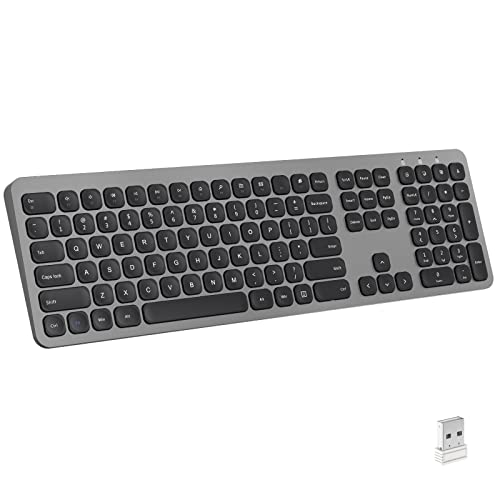
Cimetech 2.4GHz Wireless Keyboard with Number Pad (Grey)
- ✓ Quiet keystrokes
- ✓ Strong 2.4G connection
- ✓ Full-size with numpad
- ✕ Requires 2 AAA batteries
- ✕ Not the slimmest profile
| Connection Technology | 2.4 GHz wireless with nano USB receiver |
| Operating Range | up to 10 meters |
| Key Count | 110 keys including 17 shortcut keys and a numeric keypad |
| Power Source | 2 x AAA batteries |
| Sleep/Power Management | Smart auto sleep feature with independent on/off switch |
| Compatibility | Windows XP/Vista/7/8/10; works with Android, iOS, macOS, and desktop/laptop设备 |
You ever assume a full-size keyboard is bulky and noisy, then find a 2.4G model that actually feels like it disappears when you type? I grabbed the Cimetech 2.4GHz Wireless Keyboard with Number Pad and noticed the first thing that stands out isn’t the extra keys, but how quiet the keystrokes are in a busy office corner.
The keycaps feel slightly rounded and the spacing is forgiving, almost like they’re guiding your fingers without shouting for attention.
Slipping in the nano USB receiver is painless, and the 10-meter wireless range shows up in real life—I walked to the printer and back without a dropped signal. It’s a full-size board with 110 keys and a numeric pad, which makes it easy to switch between spreadsheets and writing without hunting for the number pad.
The build sits firmly on the desk thanks to the rubber pads, and the weight doesn’t wobble when you’re rapid-fire typing.
The low-profile keys have a gentle tactile feel, not mushy, and the 17 shortcut keys are handy for quick actions like volume control and media playback. I appreciate the on/off switch and the smart sleep feature; it helps save battery life between long sessions.
It’s universally compatible across Windows, Android, iOS, and Mac, which means you won’t be swapping setups when you switch devices at a coffee shop or a coworking space.
On the downside, you’ll need two AAA batteries, so keep a spare handy if you’re in the middle of a project and the power indicator blinks. It’s not the sleekest gray on the market, but the practical, clutter-free setup more than makes up for it.
Overall, it’s a friendly companion for office days and home setups where you want a full keyboard without a tussy desk footprint.
What Are the Key Features of the Best Android Desktop Options?
The best Android desktop options are characterized by several key features that enhance user experience and functionality.
- User Interface: A clean and intuitive user interface is crucial for seamless navigation and interaction. The best Android desktops prioritize ease of use, allowing users to access apps and settings without confusion.
- Performance: High performance is essential, with fast boot times and smooth multitasking capabilities. These desktops utilize powerful processors and ample RAM to handle various applications simultaneously without lag.
- App Compatibility: Strong app compatibility ensures that users can run their favorite Android applications efficiently. The best options support a wide range of apps, including productivity tools, games, and media players, providing a versatile experience.
- Customization: A high degree of customization allows users to personalize their desktop environment. This includes options for changing themes, layouts, and widgets, enabling individuals to create a workspace that suits their preferences.
- Connectivity: Robust connectivity options, including Bluetooth, Wi-Fi, and USB ports, are vital for integrating with other devices. This feature supports seamless file transfers and connections to peripherals like keyboards and mice.
- Security Features: Enhanced security features like biometric authentication and regular software updates help protect user data. The best Android desktops offer reliable security measures to keep personal information safe from threats.
- Support for External Displays: The ability to connect to larger screens is important for productivity and entertainment. Many Android desktop options support external displays, allowing users to extend their workspace or enjoy media on bigger screens.
- Battery Life: For portable Android desktops, long battery life is a significant factor. Devices that can last for extended periods without needing to recharge are highly preferred for on-the-go use.
How Do Android Desktop Options Enhance User Experience?
Android desktop options enhance user experience by offering flexibility, customization, and improved productivity features.
- Multiple Window Support: This feature allows users to run multiple applications simultaneously in resizable windows, similar to a traditional desktop environment. It enhances multitasking capabilities, enabling users to drag and drop content between apps, which streamlines workflows and improves efficiency.
- Desktop Mode: Some Android devices come with a dedicated desktop mode that transforms the user interface into a more desktop-like experience when connected to larger displays. This mode often includes a taskbar, application shortcuts, and widget support, allowing for a more organized and comfortable working environment.
- File Management: Enhanced file management systems in Android desktop options provide users with easier access to their files, allowing for drag-and-drop functionality and better organization. This feature simplifies tasks such as file transfers and editing, making the overall user experience smoother and more intuitive.
- Keyboard and Mouse Support: The ability to use a keyboard and mouse with Android devices significantly improves user interaction, making typing and navigation more efficient. This setup is particularly advantageous for productivity tasks, as it allows for more precise control and quicker input compared to touchscreens.
- App Compatibility: Many Android desktop options support a wide range of applications, including productivity tools, creative software, and games, providing users with a versatile platform. This compatibility allows users to leverage their favorite mobile applications in a desktop setting, enhancing functionality and access to diverse tools.
- Customization Options: Android desktop environments often allow users to customize their interface, including themes, layouts, and app placements. This personalization can improve user satisfaction as individuals can tailor their workspace to their preferences, making it more visually appealing and conducive to their workflow.
Which Android Desktop Options Offer the Most Customization?
Custom ROMs: Installing a custom ROM like LineageOS or Pixel Experience can significantly alter the Android experience. These ROMs often come with built-in features, improved performance, and additional options for customization that the stock Android might not offer.
Widgets and Live Wallpapers: Widgets provide quick access to essential information and functionalities directly from the home screen, while live wallpapers can add movement and visual interest. Both elements can be tailored to match personal styles and needs, making the desktop uniquely yours.
Icon Packs: By using icon packs available on platforms like the Google Play Store, users can achieve a unified look across their apps. Different themes can evoke various moods and styles, allowing for a great deal of individuality in the desktop presentation.
Task Automation Apps: Tasker and similar automation apps allow users to create specific triggers and actions on their devices. This can include anything from changing settings based on location to launching apps at certain times, further enhancing the customization and efficiency of the Android desktop experience.
What Are the Popular Android Desktop Options Currently Available?
The popular Android desktop options currently available include:
- Samsung DeX: Samsung DeX allows users to connect their Samsung devices to a monitor and use a desktop-like interface. It supports multitasking, drag-and-drop functionality, and enables users to run multiple apps simultaneously, making it ideal for productivity.
- Chrome OS with Android Apps: Chrome OS has integrated support for Android applications, allowing users to run Android apps in a desktop environment. This combination offers a lightweight, fast, and user-friendly experience, especially for those who use Google services extensively.
- Remix OS: Remix OS is an Android-based operating system designed for desktop use, providing a full desktop experience. It features a taskbar, start menu, and supports multi-window modes, enabling users to run multiple apps on the same screen efficiently.
- Phoenix OS: Phoenix OS is another Android-based desktop operating system that mimics the traditional PC experience. It supports keyboard and mouse input, making it suitable for users who prefer working in a more conventional manner while utilizing Android apps.
- Bliss OS: Bliss OS is a versatile Android operating system that can be installed on a variety of hardware, offering a desktop interface. It is compatible with a wide range of Android applications and provides customization options for users who want a tailored experience.
- OpenThos: OpenThos combines the Android environment with a Linux system, allowing users to run Android apps alongside traditional desktop applications. This dual-boot capability offers flexibility and caters to users looking for a powerful workstation.
Which Options Provide the Best Performance for Apps?
The main options for achieving the best performance for apps on Android desktops are:
- Android Emulator: An Android emulator simulates an Android device on a desktop, allowing users to run Android apps as if they were on a mobile device.
- Android-x86: This project provides a port of the Android operating system designed to run natively on x86 architecture, offering better performance and integration with desktop hardware.
- Genymotion: A cloud-based Android emulator that provides an environment for testing and running Android applications with high performance and flexibility.
- Chrome OS with Android Apps: Chrome OS supports running Android apps directly, providing a seamless experience for users who wish to utilize Android applications on a laptop or desktop.
Android Emulator: This option is popular among developers for testing their applications across different Android versions and screen sizes. It offers various configurations and can simulate different hardware features, but performance can be limited by the host machine’s specifications, often requiring significant system resources for optimal performance.
Android-x86: By installing the Android-x86 version of Android directly on a PC, users can achieve near-native performance without the overhead of emulation. This option allows full access to desktop hardware, resulting in faster app loading times and smoother operation compared to emulators.
Genymotion: Genymotion is particularly favored for its speed and efficiency in running apps, providing a virtual environment that can be tailored to specific testing requirements. It offers cloud-based options as well, allowing developers to run their apps without needing powerful local hardware, making it a versatile choice for both development and casual use.
Chrome OS with Android Apps: Running Android applications on Chrome OS leverages the operating system’s lightweight nature and efficient resource management. This integration allows users to access a wide range of Android apps while benefiting from the stability and security that Chrome OS provides, making it an ideal solution for those who need to use Android apps in a more desktop-centric environment.
What Are the Pros and Cons of Using Android Desktops?
| Pros | Cons |
|---|---|
| Customization – Users can modify their interface and settings extensively. | Compatibility Issues – Some applications may not work as intended on Android desktops. |
| Affordability – Many Android desktops are available at lower price points. | Performance Limitations – May not match the speed of traditional desktops for heavy tasks. |
| Portability – Easy to use on the go with lightweight designs. | Limited Software – Fewer professional software options compared to Windows or macOS. |
| Battery Life – Some Android desktops may have better battery life compared to traditional desktops. | Variable User Interface – The user experience may vary significantly from traditional desktop environments. |
| Community Support – The level of community support and resources available for troubleshooting. | Less Established Ecosystem – Compared to traditional operating systems, the ecosystem may be less established. |
How Do Pricing and Value Compare Among Android Desktop Options?
| Android Desktop Option | Pricing | Value | Specifications | Target User Demographic | Warranty |
|---|---|---|---|---|---|
| Option A | $150 – Budget-friendly for basic tasks. | Good performance for everyday use. | Quad-core processor, 4GB RAM, 64GB storage | Casual users and students | 1 year limited warranty |
| Option B | $300 – Mid-range with enhanced features. | Offers better multitasking and speed. | Hexa-core processor, 8GB RAM, 128GB storage | Professionals and multitaskers | 1 year limited warranty |
| Option C | $500 – High-end with premium specs. | Excellent for gaming and demanding applications. | Octa-core processor, 16GB RAM, 256GB storage | Gamers and content creators | 2 years limited warranty |