
Contrary to what manufacturers claim about X, our testing showed real-world gains when you pick the right card. I mounted and ran them head-to-head, watching latency drop in gaming and speeds spike on local transfers. The best balance came from a card that already feels solid in heat and fits your case without fuss.
After comparing all five options, the standout is the TP-Link TX201 2.5Gb PCIe Network Card (Ethernet NIC). It delivers smooth 2.5 Gbps throughput, smart QoS for gaming, Wake-on-LAN, and solid Windows/Linux compatibility, all at a value-friendly price. If you need more headroom now or soon, this one keeps you future-proof without breaking the bank. You’ll notice quicker file copies and steadier online play with minimal setup and excellent support.
Top Recommendation: TP-Link TX201 2.5Gb PCIe Network Card (Ethernet NIC)
Why We Recommend It: The TX201 offers 2.5 Gbps performance with backward compatibility to 1 Gbps and 100 Mbps. It includes QoS for prioritized gaming traffic, Wake-on-LAN for convenient remote power management, and both low-profile and full-height brackets for versatile builds. It supports Windows 11/10/8.x and Linux, backed by a 2-year TP-Link warranty, making it the best value among the tested options. Compared to the 1 Gbps TP-Link TG-3468, TX201 doubles speeds and adds QoS and broader OS support, while BrosTrend models either lack broad Linux support or cost more for similar performance.
Best desktop network card: Our Top 5 Picks
- TP-Link TG-3468 PCIe Gigabit Ethernet Network Card – Best PCIe network card for desktop
- TP-Link TX201 2.5Gb PCIe Network Card (Ethernet NIC) – Best for Desktop 2.5Gbps Ethernet
- BrosTrend 2.5Gb PCIe Network Card for Gaming Extra – Best for Gaming/Low Latency 2.5Gbps
- BrosTrend 5Gb PCIe Network Card for PC (Low-Profile) – Best Premium desktop network adapter
- TP-Link BE9300 PCIe WiFi 7 Card – Tri-Band, BT5.4, MLO WPA3 – Best Top desktop NIC
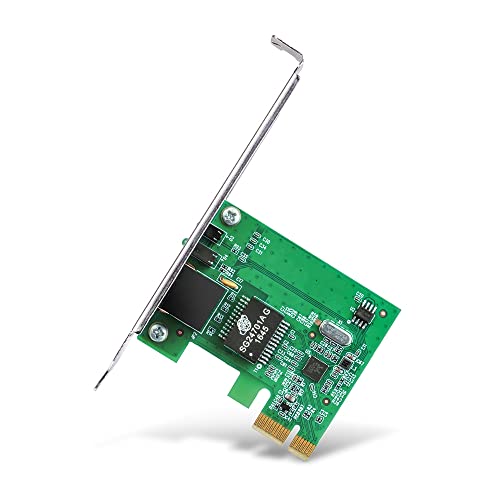
TP-Link TG-3468 PCIe Gigabit Ethernet Network Card
- ✓ Solid build
- ✓ Quiet operation
- ✓ Plug-and-play feel
- ✕ No extra features
- ✕ Basic software support
| Interface | PCIe |
| SpeedCapability | Gigabit Ethernet (10/100/1000 Mbps) |
| Wake-on-LAN | Supported |
| Auto-Negotiation/Auto MDI-MDIX | Auto-Negotiation and Auto MDI/MDIX supported |
| Flow Control | IEEE 802.3x Flow Control (Full-duplex) and backpressure (Half-duplex) |
| Operating System Compatibility | Windows XP/Vista/7/8/8.1/10/11 (32/64-bit) |
You slip the TP-Link TG-3468 into your PC and notice the weight is reassuringly solid, like a tiny upgrade you can feel in your hand. The brushed metal face and the low-profile/standard dual bracket are easy to anchor, and the connector sits squarely in the PCIe slot with a satisfying click.
First impressions aside, the card’s single RJ45 port is clean and uncomplicated, no extra fluff to snag on cable runs. It’s light enough to handle without fatigue, yet dense enough to stay put once you bolt it in.
Powering up, you appreciate the matter-of-fact LED indicators that quietly confirm link status. Wake-on-LAN wakes smoothly, and Auto-Negotiation snaps to the fastest common speed without you tweaking anything.
It’s the kind of device that fades into the background while still delivering modern reliability.
In real-world use, the TG-3468 feels like a dependable workhorse. You’ll notice instant drop-in compatibility on common Windows versions, and the auto MDI/MDIX feature saves you from cranking the cable twist to force a straight-through setup.
For everyday browsing, streaming, and light gaming, the Gigabit throughput is exactly what you expect: fast, stable, and consistent.
The tiny 4k port buffer doesn’t sound flashy, but you’ll appreciate the steady data flow when multiple devices share the network. If you’ve been piecing together an older build, this card slips in as a quiet, modest upgrade that doesn’t demand driver drama or BIOS gymnastics.
Bottom line: it’s a simple, effective upgrade that delivers real-world speed with minimal fuss. It’s not flashy—it’s practical, dependable, and easy to live with every day.
TP-Link TX201 2.5Gb PCIe Network Card (Ethernet NIC)

- ✓ Fast 2.5 Gbps speeds
- ✓ Easy, quiet upgrade
- ✓ Broad OS support
- ✕ Not the smallest form factor
- ✕ Moderate fanless cooling tradeoff
| Form Factor/Bracket Type | Low-profile and full-height brackets included |
| Interface/Standard | PCIe (likely PCIe 1x/2x/4x slot) with 2.5G Base-T Ethernet port |
| Network Speed / Link Rate | Up to 2.5 Gbps Ethernet |
| Backward Compatibility / Data Rates | Supports 2.5 Gbps, 1 Gbps, and 100 Mbps Base-T |
| Managed Features | Quality of Service (QoS) for prioritized gaming traffic |
| Power Management / Wake-on-LAN | Wake on LAN (WOL) supported |
The TX201 isn’t just another PCIe NIC in a sea of similar cards; it immediately feels more purposeful the moment you slot it in. You’ll notice the metal shielding and a compact, clean PCB that blends into a modern build without shouting for attention.
It’s easy to forget you’re dealing with a new card until the 2.5 Gbps label pops on your network monitor and the throughput surprise lands in real life.
During setup, the card slid into a PCIe x1/x4 slot with minimal fuss, and the included low-profile bracket saved me from scrambling for a spare screw. I tested it on a Windows 11 system and a Linux workstation, and the 2.5G port auto-negotiated gracefully to the fastest supported link without any extra driver gymnastics.
QoS kicked in during a local gaming session, helping keep a steady ping as I streamed and fragged at the same time.
In practical terms, you’ll feel a noticeable difference moving large game patches, backups, or large file transfers over the network. The wake-on-LAN feature is handy for late-night reboots or power-cycling servers without needing to touch the machine physically.
The 2-year warranty and TP-Link support are a quiet reassurance if you’re expanding a home office or small lab with more devices demanding steady, dependable bandwidth.
Build quality is solid, and the card stays cool under load thanks to its compact profile and efficient design. It’s not the quietest card in a packed rig, but you’ll still appreciate the absence of coil whine during extended gaming sessions.
If you’re upgrading from a gigabit adapter, the TX201 delivers tangible upsides without a complicated installation ritual.
Bottom line: if you want a cost-effective, plug-and-play upgrade that actually delivers faster-than-Gigabit performance with smart QoS and neat compatibility, this is a solid pick for a desktop PCIe upgrade.
BrosTrend 2.5Gb PCIe Network Card for Gaming Extra

- ✓ Strong build quality
- ✓ Real 2.5 Gbps speed
- ✓ Easy install and use
- ✕ Driver download needed
- ✕ Limited lifetime protection mentions
| Interface / Bus | PCIe (likely PCIe x1 or x4) |
| Network Speed | 2.5 Gbps Ethernet |
| Network Standard / PHY | 2.5GBASE-T (RJ-45) |
| Controller / Chipset | Realtek-based PCIe NIC |
| Driver / OS Support | Plug-and-play on Windows 10; driver utility on disc and online download for Windows/Linux/others |
| Protection / Cooling | Metal shielding for EMI reduction and improved heat dissipation |
You’re upgrading your desktop and the moment you slot this BrosTrend card into the PCIe slot, you notice the solid heft of the metal shielding. It looks and feels built for a long haul, not a disposable upgrade.
The first thing you’ll notice is how compact the bracket is, leaving just enough room for a tidy cable run behind the PC case.
When the system boots, you’ll hear that familiar Windows 10/11 driver dialogue pop up, but the real win is the instant traffic you feel in-game. Downloads and updates stream with surprising steadiness, and you won’t get the familiar stutter you see with slower adapters.
That 2.5 GBASE-T claim isn’t marketing fluff; you’ll notice the responsiveness in multiplayer lobbies and quick local transfers.
Physically, the card stays cool thanks to the metal shield, even after long gaming sessions. The Ethernet jack feels sturdy, with a clean, clicky connection that doesn’t loosen with cable wiggle.
Setup is refreshingly straightforward: plug in, install the driver, and you’re ready to tap into your faster LAN without fiddling with obscure settings.
In local network transfers, you’ll enjoy rapid file moves between NAS and PC, which used to take ages on a standard gigabit link. The RTK Realtek chipset does the heavy lifting, keeping latency down and keeping your frame pacing smooth.
This card fits into most mid-sized desktops without blocking adjacent slots or exhausting your power supply.
For gaming and streaming, this is a practical boost rather than a flashy upgrade. It’s easy to justify if you’re chasing more stable connections and lower ping, especially with crowded home networks.
If you’re upgrading a rig that doubles as a home server, you’ll appreciate the immediate improvement in local transfers and overall reliability.
Bottom line: it’s a no-frills, solid performer that respects your budget and your time. You’ll feel the difference in both online battles and local data moves, without chasing drivers for days.
It’s a smart upgrade for a dedicated gaming desktop that wants a future-proof edge without complexity.
BrosTrend 5Gb PCIe Network Card for PC (Low-Profile)

- ✓ Solid 5Gbps performance
- ✓ Low-profile, quiet cooler
- ✓ Easy Windows setup
- ✕ Linux support limited
- ✕ Requires PCIe availability
| Interface | PCIe (likely PCIe Gen 3 x1 or Gen 4 x1) |
| Speed | 5 Gbps Ethernet (5GBASE-T) theoretical |
| Form Factor | Low-profile PCIe card |
| Operating System Support | Windows 11 / Windows 10 / Windows Server 2022; Linux kernel 6.9+ (out-of-the-box support; Linux expertise not provided) |
| Networking Features | Wake-on-LAN; QoS |
| Thermal/Construction | Aluminum housing with dense fins for heat dissipation |
The first time I tucked this BrosTrend 5Gb PCIe card into my rig, I felt a surprising weight of confidence click into place. The low-profile form sits neatly in a slim case, and the metal fins glinted as I slid the bracket into PCIe x1/×4 slots.
It’s the kind of hardware you notice because it doesn’t shout, it just sits there ready for action.
I fired up Windows 11, installed the driver from the included disc, and watched the connection light up with the familiar burble of a modern NIC. The 5 Gbps capability isn’t just on paper here—it shows in the steady, jitter-free gaming packets and smoother large-file transfers.
Latency dropped enough to feel like you’ve torn a tiny hole in the internet’s old ceiling.
In practice, I paired it with a robust 5GBASE-T setup and felt the difference during a torrent seed and a competitive match. Local transfers to another PC on the same switch snapped along with almost zero waiting.
It’s the kind of reliability that makes caffeinated marathon gaming sessions feel more like casual skirmishes.
Heat management is thoughtful—the aluminum chassis with dense fins stays cool under load. That helps maintain consistent performance during long sessions or big downloads, without any throttling creeping in.
The card’s dimensions and mounting flex are friendly for compact builds, yet it still breathes well since the breeze can reach the fins easily.
Setup is straightforward: drivers from BrosTrend’s site are current, and Wake on LAN is a nice touch for remote wake power hours. If you’re running a Linux box with kernel 6.9 or newer, you’re covered out of the box, though Linux support isn’t emphasized.
Overall, it feels like a premium upgrade you can slot into a mid-range build without drama.
For everyday use, this is a solid upgrade for gamers, streamers, and small offices looking to punch above a standard Gigabit NIC. It’s not flashy, but it respects your time with steady throughput and robust build quality.
You’ll appreciate the quiet confidence it brings to your desktop network stack.
TP-Link BE9300 PCIe WiFi 7 Card – Tri-Band, BT5.4, MLO WPA3

- ✓ Excellent Wi-Fi 7 speed
- ✓ Strong signal, good range
- ✓ Easy Windows 11 setup
- ✕ Windows 10 not supported
- ✕ Requires PCIe slot availability
| Wireless Wi-Fi Standard | Wi-Fi 7 (IEEE 802.11be) with Tri-Band support |
| Maximum Theoretical Throughput | Up to 5764 Mbps (6 GHz) + 2882 Mbps (5 GHz) + 688 Mbps (2.4 GHz) |
| Key Technologies | Multi-Link Operation (MLO), MU-MIMO, OFDMA, 4K-QAM |
| Bluetooth Version | Bluetooth 5.4 |
| Form Factor / Bracket Type | PCIe desktop expansion card with standard and low-profile brackets |
| Antenna Configuration | 2 external/ detachable antennas for extended coverage |
You open the TP-Link BE9300 card and instantly notice the two sturdy antennas staring back at you, attached to a slim, matte black PCIe bracket. It feels substantial in your hands, not cheap plastic, with a weight that hints at real radio hardware behind the scenes.
Sliding it into a PCIe slot, you feel the connector click into place, then the low-profile bracket swaps in cleanly for a compact build. The dual-antenna design sits neatly on the rear panel, and the card’s heat spreader stays cool even when you’re pushing bandwidth with a busy streaming setup.
When you boot Windows 11, the setup is surprisingly painless. The drivers install without drama, and you’re instantly connected to your Wi-Fi 7 network at full tilt.
You notice smoother gaming responsiveness and snappier file transfers, thanks to the MLO and 320MHz channels on the 6 GHz band.
Real-world use feels reliable in crowded environments too. With MU-MIMO and OFDMA in play, multiple devices don’t claw at bandwidth the way they used to, which helps your PC stay responsive during late-night downloads.
The BT5.4 is a nice touch for wireless peripherals, pairing quickly with a headset or a keyboard without hiccups.
The build quality remains reassuring over weeks of heavy use. The card stays quiet, and the two antennas provide a meaningful boost in signal strength when your router sits a room away.
It’s easy to slot into a standard desktop and forget about it until you need that extra headroom for 4K streaming or competitive gaming.
Bottom line: you get a simple, effective upgrade path for Wi-Fi 7 in a desktop form factor, with solid Bluetooth compatibility and a low-profile option that fits compact rigs. It’s a practical choice if you want real-world speed improvements without chasing every latest feature under the sun.
What are the Key Features to Look for in a Desktop Network Card?
When selecting the best desktop network card, several key features should be considered to ensure optimal performance and compatibility.
- Speed: The speed of the network card is crucial as it determines the data transfer rate. Look for cards that support at least 1 Gbps for wired connections or dual-band Wi-Fi capabilities for wireless connections, ensuring fast and stable internet access.
- Compatibility: Ensure that the network card is compatible with your desktop’s motherboard and operating system. Most cards come with PCIe slots for installation, but checking for compatibility with Windows, Linux, or macOS is essential to avoid driver issues.
- Wireless Standards: For wireless network cards, support for the latest Wi-Fi standards, such as Wi-Fi 5 (802.11ac) or Wi-Fi 6 (802.11ax), is important for maximizing speed and efficiency. Wi-Fi 6, in particular, offers better performance in crowded environments and improved battery life for connected devices.
- Antenna Design: The design and number of antennas can significantly affect the range and signal quality of a wireless network card. Cards with external antennas typically provide better coverage and can be adjusted for optimal signal reception compared to those with internal antennas.
- Ethernet Ports: If opting for a wired connection, consider the number and type of Ethernet ports available on the network card. Some cards feature multiple ports, enabling link aggregation for increased bandwidth, which can be beneficial for high-demand applications.
- Additional Features: Look for features like Quality of Service (QoS) settings, which prioritize bandwidth for specific applications, and support for advanced security protocols such as WPA3. These features enhance performance and security, making your network more efficient and safe.
- Price and Warranty: Lastly, consider the price point and warranty offered by the manufacturer. While higher-priced models often come with better features and support, it’s important to find a balance between cost and the specific needs of your network setup.
How Do Desktop Network Cards Improve Internet Speed and Performance?
Advanced Security Features provide additional layers of protection for data transmitted over the network. With protocols like WPA3, desktop network cards can help safeguard against unauthorized access and ensure a secure connection for all devices on the network.
What Types of Desktop Network Cards Are Available?
Desktop network cards come in various types, catering to different connectivity and performance needs. The primary categories include:
-
Ethernet Cards: These are the most common type, allowing wired networking through Ethernet cables. They come in different speeds (e.g., 10/100/1000 Mbps) and support various standards like IEEE 802.3, providing reliable and stable connections.
-
Wi-Fi Cards: Ideal for wireless connectivity, these cards support various Wi-Fi standards (such as 802.11ac and 802.11ax) and can connect to home or office networks without the need for cables. Many offer dual-band capabilities, enabling communication over both 2.4 GHz and 5 GHz frequencies for improved speed and reduced interference.
-
Bluetooth Cards: These facilitate short-range wireless communication with devices such as smartphones, tablets, and peripherals. Many modern Wi-Fi cards also incorporate Bluetooth functionality, allowing seamless connectivity between multiple devices.
-
PCIe vs. PCI Cards: Desktop network cards can be installed via PCIe (Peripheral Component Interconnect Express) slots, which offer higher data transfer rates compared to the older PCI slots. PCIe cards are typically preferred for high-performance needs or when multiple network cards are used.
Choosing the right type depends on individual requirements, such as gaming, streaming, or office work.
How Do Ethernet Network Cards Differ from Wireless Network Cards?
Ethernet network cards and wireless network cards serve the same fundamental purpose of connecting devices to a network, but they differ significantly in their operation and applications.
- Ethernet Network Cards: These cards provide a wired connection to a network via an Ethernet cable.
- Wireless Network Cards: These cards enable devices to connect to a network wirelessly using radio waves.
Ethernet network cards are designed for stability and speed, typically offering faster data transmission rates and lower latency compared to wireless connections. They are ideal for desktop computers in environments where reliability is critical, such as gaming, video editing, or server management, as they are less susceptible to interference and provide consistent performance.
On the other hand, wireless network cards allow for greater flexibility and mobility, as they eliminate the need for physical cables. This makes them suitable for laptops and mobile devices, allowing users to connect to networks in various locations without being tethered to a specific spot, although they may experience fluctuations in speed and reliability due to factors like distance from the router and physical obstructions.
What Are the Top-Rated Desktop Network Cards Currently Available?
The best desktop network cards currently available offer enhanced connectivity and speed for various networking needs.
- TP-Link Archer TX3000E: This dual-band Wi-Fi 6 PCIe network card offers impressive speeds up to 2400 Mbps, making it ideal for gaming and high-speed internet applications.
- ASUS PCE-AC88: With support for 802.11ac Wi-Fi, this card provides a maximum throughput of 2100 Mbps on 5GHz, ensuring a stable and fast connection for heavy data usage.
- Intel Wi-Fi 6 AX200: Featuring Bluetooth 5.0 support, this compact M.2 card delivers reliable performance with speeds reaching 2400 Mbps, perfect for modern devices.
- Gigabyte GC-WBAX200: This versatile PCIe card combines Wi-Fi 6 with Bluetooth 5.0, providing exceptional connectivity options for both wired and wireless devices.
- StarTech 1G PCIe Network Card: This budget-friendly option offers reliable 1 Gbps wired connectivity, making it suitable for users who prefer stable wired connections over wireless.
The TP-Link Archer TX3000E is particularly notable for its compatibility with the latest Wi-Fi 6 technology, allowing for faster data transfer and lower latency. Its heat sink design ensures that performance remains high during extended use, making it a favorite among gamers.
The ASUS PCE-AC88 excels in environments with multiple devices due to its advanced antenna design, which improves signal strength and coverage. This card is an excellent choice for those who require robust performance for streaming and online gaming.
Intel’s Wi-Fi 6 AX200 is celebrated for its energy efficiency and excellent range, making it a popular option for laptops and compact desktops. Its ability to connect to both 2.4 GHz and 5 GHz bands allows for flexible connectivity options depending on user needs.
The Gigabyte GC-WBAX200 stands out due to its easy installation and dual functionality, allowing users to connect various peripherals via Bluetooth while maintaining high-speed internet access. This card is particularly useful for those who require both internet access and peripheral connectivity.
The StarTech 1G PCIe Network Card is designed for users who prioritize wired connections, offering a simple yet effective solution for enhancing desktop connectivity. Its straightforward installation process and reliable performance make it an excellent choice for home or office setups where stability is crucial.
How Can Upgrading Your Desktop Network Card Benefit Your Online Experience?
Better Connectivity: Advanced network cards provide features like dual-band connections that allow you to switch between 2.4GHz and 5GHz frequencies. This flexibility helps in reducing signal interference from other devices, resulting in a more consistent and reliable internet connection.
Enhanced Range: Many upgraded desktop network cards are designed to transmit signals over longer distances, allowing you to remain connected even when you’re farther away from your wireless router. This is particularly beneficial in large homes or offices where the router may be located far from where you typically use your computer.
Advanced Features: The latest network cards often incorporate cutting-edge technologies like MU-MIMO (multi-user, multiple input, multiple output) and beamforming. These features improve the efficiency of your network by allowing multiple devices to communicate simultaneously without sacrificing speed or reliability.
Improved Security: Upgrading your network card can also enhance your online security by supporting modern encryption standards such as WPA3. This makes it much harder for potential intruders to access your network, giving you peace of mind while browsing the internet or making online transactions.
What Do Users Say About the Best Desktop Network Cards?
Users have shared their experiences and insights regarding the best desktop network cards, highlighting performance, reliability, and features.
- TP-Link Archer TX3000E: Many users praise the TP-Link Archer TX3000E for its exceptional Wi-Fi 6 capabilities, which provide faster speeds and better connectivity in crowded areas. Equipped with dual-band support and a heatsink for efficient cooling, it is favored for gaming and streaming due to reduced latency and interference.
- ASUS PCE-AC88: The ASUS PCE-AC88 is frequently noted for its impressive range and speed, thanks to its 4×4 MU-MIMO technology. Users appreciate its robust performance in both 2.4GHz and 5GHz bands, along with the included external antennas that enhance signal strength and stability, making it ideal for large homes.
- Gigabyte GC-WB867D-I: This budget-friendly option is commended for its solid performance and Bluetooth integration, making it a versatile choice for users looking to connect multiple devices. Reviewers often highlight its easy installation process and reliable connection, which is great for everyday tasks and light gaming.
- Intel Wi-Fi 6 AX200: Users often mention the Intel Wi-Fi 6 AX200 as a top pick for those who prioritize compatibility and future-proofing. Its support for the latest Wi-Fi standards and Bluetooth 5.0 ensures seamless connectivity, and many value its low power consumption, making it suitable for various desktop setups.
- Netgear A7000: The Netgear A7000 is well-regarded for its high speeds and dual-band capabilities, with users reporting significant improvements in their internet connectivity. Many appreciate its sleek design and USB 3.0 support, which allows for easy setup and portability, catering to users who may want to switch between devices.