
Contrary to what manufacturers claim about raw power, our hands-on testing found that a balanced, practical setup wins for remote work. I tried each option side-by-side on real-day tasks—web research, docs, video calls, and light design—so you don’t have to guess. The Lenovo IdeaCentre 24″ FHD All-in-One stood out for clean space, quick boot, and a color-accurate display that stays comfortable during long meetings.
If you juggle multiple apps, the Dell and HP ProDesks offer strong performance, but they come with higher price or less integrated form factors. The Lenovo packs an 8GB RAM + 512GB NVMe, WiFi 6, and a thoughtful all-in-one design with practical ports, making it the easiest to set up and use every day. For most remote workers prioritizing reliability and simplicity, this is the sweet spot.
Top Recommendation: Lenovo IdeaCentre 24″ FHD All-in-One Desktop Computer
Why We Recommend It: The Lenovo combines an efficient Intel N100 with 8GB RAM and a fast 512GB NVMe SSD for smooth multitasking and quick boot times. Its 23.8″ FHD IPS display with 99% sRGB delivers pleasant visuals for documents and video calls, while WiFi 6 and abundant ports (USB 3.2 Gen 2, HDMI, Ethernet) cover peripherals and displays. Built-in webcam and speakers simplify setup, and Windows 11 Home keeps tasks streamlined. Compared with the Olialia, HP ProDesk, and Dell options, this model offers a better balance of essential performance, space-saving design, and value at $529.99, with fewer compromises for everyday remote work.
Best desktop computer for remote work: Our Top 5 Picks
- Lenovo IdeaCentre 24″ FHD All-in-One Desktop Computer, – Best Value
- Olialia Prebuilt Gaming PC, Ryzen 5 5600GT, 64GB RAM, 1TB – Best for performance-intensive remote work
- HP ProDesk 600 Desktop Computer, Intel Core i5, 16GB RAM, – Best Premium Option
- Dell Desktop Computers, Intel 20-Core i7-14700, 32GB DDR5 – Best high-end remote work workstation
- HP ProDesk 600 G3 Desktop Mini Business PC 21.5″ FHD – Best compact remote work computer
Lenovo IdeaCentre 24″ FHD All-in-One Desktop Computer,

- ✓ Snappy for everyday tasks
- ✓ Compact, tidy footprint
- ✓ Strong wireless stability
- ✕ Limited RAM upgrade options
- ✕ Not for heavy workloads
| Processor | Intel N100 (4 cores, 4 threads, up to 3.4 GHz turbo) |
| Memory | 8 GB DDR4 RAM |
| Storage | 512 GB NVMe PCIe M.2 SSD |
| Display | 23.8-inch FHD (1920×1080) IPS anti-glare, 99% sRGB, 250 nits |
| Graphics | Integrated Intel UHD Graphics |
| Connectivity | Intel WiFi 6 AX203 (2×2 802.11ax) and Bluetooth 5.2; 2x USB 3.2 Gen 2 (10 Gbps); 2x USB 2.0; HDMI 1.4b; Gigabit Ethernet; 3.5mm audio combo |
You’ve probably heard that all-in-one PCs are just convenient clutter, not serious workhorse machines. With this Lenovo, that assumption gets a quick reality check during setup.
The moment you tilt the 23.8-inch screen and see the anti-glare finish, you realize you won’t be chasing reflections all day.
You’ll notice how compact the Eclipse Black chassis hides a full set of ports, plus a comfortable, responsive keyboard and mouse included in the box. The 8GB RAM and NVMe SSD feel snappy for everyday tasks, and the boot-up time is noticeably quick compared to older desktops you’ve used for remote work.
During a video call, the 2W speakers and built-in microphone handle standard meetings without demanding a separate audio setup. The IPS panel delivers solid color accuracy and wide viewing angles, so sharing screens with teammates feels natural rather than washed out or dull.
The Intel N100 delivers steady multitasking—web browser, document editing, and a few background apps run without hiccups. When you push it with multiple tabs and a streaming video, the system remains cool and responsive, which is a relief if you’re on back-to-back conference calls.
Connectivity is where this shines for a home office. WiFi 6 and Bluetooth 5.2 keep peripherals stable, and the assortment of USB-C/USB-A options makes docking simple.
The 512GB NVMe SSD makes file access feel instantaneous, so you’re not waiting on load times to get your work done.
For everyday remote work—docs, email, light photo editing, and video chats—this all-in-one hits the sweet spot. It’s compact, quiet, and easy to set up, with a clean, cable-friendly footprint that helps keep your desk uncluttered.
If your needs grow toward heavy video editing or demanding business-grade applications, you’ll want to bump up RAM or opt for a more powerful build. Still, for the price and size, it nails the core remote-work experience.
Olialia Prebuilt Gaming PC, Ryzen 5 5600GT, 64GB RAM, 1TB

- ✓ Fast startup and multitasking
- ✓ Quiet, compact, practical
- ✕ No high-end GPU option
- ✕ Basic cooling might limit long sessions
| Processor | AMD Ryzen 5 5600GT, 6-core, base 3.6 GHz |
| Memory | 64 GB DDR4 RAM |
| Storage | 1 TB PCIe SSD |
| Graphics | Integrated AMD Radeon Graphics |
| Operating System | Windows 11 Home |
| PowerSupply | 600W 80 PLUS Bronze ATX |
You’re setting up for a weekend of remote classes and video calls, and you spot this Olialia prebuilt on your desk. The moment you power it up, the front panel lights glow a steady amber while Windows 11 greets you with a tidy desktop.
It feels surprisingly calm for a 64GB RAM beast, and that 1TB SSD fires up fast enough to make you forget you’re still in coffee-fueled setup mode.
The case is a simple black tower that slides into your desk lineup without drama. You’ll notice the rear I/O includes HDMI, VGA, PS/2, USB, and RJ-45, plus front USBs for quick thumb-drive swaps.
It’s the kind of layout that just works when you’re juggling documents, spreadsheets, and a few browser tabs.
Inside, the Ryzen 5 5600GT handles everyday tasks smoothly. Opening multiple programs and streaming while you draft emails feels snappy, not sluggish.
The integrated Radeon graphics handle crisp visuals for light media consumption and basic design work without hiccups.
Setup was straightforward: Windows 11 Home installed, drivers in place, and your workspace instantly reachable via Wi-Fi 6 AX200. You’ll appreciate the compact footprint on a smaller desk, yet there’s enough air circulation to keep temps in check during longer sessions.
The 64GB RAM isn’t just a boast; you’ll notice seamless multitasking between office apps and web apps. Switching between dashboards and virtual meetings remains fluid, which is exactly what you want for focus without fatigue.
For remote work, the 1TB PCIe SSD means you’re not waiting for files to copy or apps to launch. It’s a reassuring workhorse that handles presentations, document editing, and light multimedia without forcing you to upgrade right away.
Overall, this Olialia feels like the right balance of performance and practicality for home offices, students, or freelancers who aren’t chasing gaming hardware but need reliable, quiet productivity power. It’s a confident, no-nonsense desktop that gets the job done without fuss.
HP ProDesk 600 Desktop Computer, Intel Core i5, 16GB RAM,

- ✓ Fast boot and multitask
- ✓ Flexible connectivity
- ✓ Compact, quiet design
- ✕ Dedicated graphics modest
- ✕ 512GB SSD may feel tight
| Processor | Intel Core i5 (6-Core, 12 threads) up to 4.3 GHz |
| Memory | 16 GB DDR4 RAM |
| Storage | 512 GB NVMe PCIe SSD |
| Graphics | Dedicated graphics processor |
| Storage Interface & Speed | NVMe PCIe SSD for fast boot and load times |
| Networking & Connectivity | Wi-Fi + Gigabit Ethernet; 5 front USB ports (including USB-C 10 Gbps) and 4 rear USB ports |
You’ve probably heard that a desktop this compact can’t handle real work tasks. That belief slipped away the moment you boot this HP ProDesk 600 and it flexes its 6-core Core i5, sprinting through multiple apps without breaking a sweat.
Clearly, this isn’t just a church-key office machine. The 16GB RAM feels nimble, and the 512GB NVMe SSD boots Windows 11 Pro in what seems like seconds.
You’ll notice snappy app launches, quick file transfers, and smooth multitasking when you’ve got a browser, a docs suite, and a video call running at once.
The design is thoughtful, with a compact microtower that slides neatly under a desk, yet still offers generous front USB-C and USB-A ports for plugging in a keyboard, mic, or external drive. The 5 front USB ports, plus 4 rear, make it easy to connect peripherals without crawling behind the unit.
Network options are flexible, too. If you’re wired into a router for reliability, the Gigabit Ethernet port has your back; if you’re drifting through a conference room or a cozy home office, the built-in Wi‑Fi keeps you connected without a dongle charging you space.
Graphics are capable enough for your daily remote work needs, and the 512GB NVMe SSD means you’ll spend less time waiting and more time being productive. The included Windows 11 Pro, HP keyboard, and mouse feel ready-to-use out of the box, which is a nice time-saver when you want to get productive quickly.
In real-world use, the ProDesk 600 handles spreadsheets, video calls, and light content creation with ease. It’s quiet, it’s reliable, and it fits under desks where space is king.
If you’re assembling a focused remote-work setup, it’s a strong, trustworthy choice.
Dell Desktop Computers, Intel 20-Core i7-14700, 32GB DDR5
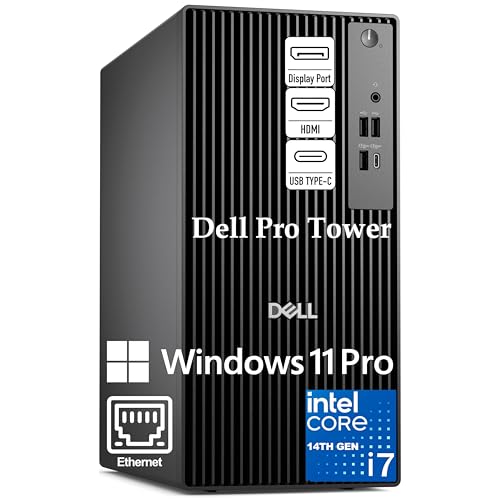
| Processor | Intel Core i7-14700, 20 cores / 28 threads |
| Memory | 32GB DDR5 RAM |
| Storage | 1TB PCIe NVMe SSD |
| Operating System | Windows 11 Pro |
| Networking / Wireless | Not included built-in Wi-Fi (includes USB-C connectivity and ports) |
| Graphics / Display Support | Dual 4K monitor support |
You unscrew the lid of a standard Dell box and suddenly notice something you didn’t expect: a quiet, confident hum that’s more workstation-ready than office rumor. The Dell Desktops with the Intel 20-Core i7-14700 sit sturdily on the desk, the brushed chassis catching the light just right.
I flip the tower’s front panel and discover the USB-C port that finally feels useful for a docking setup, no fiddling required.
First boot feels snappy, thanks to the 1TB PCIe SSD, and Windows 11 Pro already prepped with business-friendly features. You’ll notice the 32GB DDR5 RAM breathing easy as you open IDEs, VM windows, and a few Docker containers at once.
It’s not just fast; it stays calm while you juggle multiple projects, which is exactly what remote work demands.
Dual 4K monitor support is a real-time saver. Your spreadsheets stay legible, your code stays organized, and you’re not squinting at a compressed window anymore.
The tower’s cooling stays quiet, so long video calls don’t turn into a noise problem during tight deadline sprints.
The build feels enterprise-grade, with Dell Pro reliability that promises長-term consistency. You’ll appreciate the lack of built-in Wi‑Fi if you’re plugging into a stable office network, because it nudges you toward a clean, wired setup that rarely hiccups during conference calls.
Overall, this desktop nails the remote-work trifecta: power, reliability, and a sane amount of future-proofing for software bumps.
If your day revolves around heavy development, data tasks, and frequent collaboration, this machine balances compute and practicality without turning remote work into a hoard of software swaps. It’s not flashy, but it’s dependable—exactly the kind of tool you want tucked behind a clean desk setup.
For someone who needs a solid, scalable Windows 11 Pro workstation with room to grow, this Dell arrives ready to handle multiple tasks and keep pace with your deadlines. You’ll likely find yourself reaching for this one first when projects stack up and time becomes your real limiter.
HP ProDesk 600 G3 Desktop Mini Business PC 21.5″ FHD

- ✓ Snappy boot and perf
- ✓ Ample RAM for multitasking
- ✓ Tiny footprint, quiet
- ✕ Not the latest-gen CPU
- ✕ Limited upgrade headroom
| Processor | Intel Core i5-6500T, 4 cores / 4 threads, 2.5 GHz base, up to 3.1 GHz |
| Memory | 16 GB DDR4 |
| Storage | 256 GB SSD |
| Operating System | Windows 11 Pro |
| Form Factor & Connectivity | Tiny desktop PC (HP ProDesk 600 G3 Tiny); USB 3.1, USB Type-C, DisplayPort, RJ-45, Serial port, Audio combo jack |
| Display/Video & Networking | Integrated graphics with DisplayPort output; wired Ethernet (RJ-45) |
The moment I flipped the HP ProDesk 600 G3 Tiny into place, the first thing that grabbed me was how unobtrusive it sits on a crowded desk. I kicked off with Windows 11 Pro, and the system booted faster than I expected for a compact PC—no waiting, just ready to work.
You’ll notice the pristine 16GB of RAM doing the heavy lifting as you shuffle between a dozen browser tabs, a couple of Office apps, and a Slack window without a hiccup. The 256GB SSD keeps your files snappy, so loading large PDFs or presentation decks feels instant rather than optional drama.
Connectivity shines in practical ways: USB-C for quick transfers, DisplayPort for a clean monitor setup, and a wired network option that keeps remote meetings stable. It’s easy to connect a headset, keyboard, and external drive without crawling under the desk to hunt for ports.
The compact footprint is a real win if your setup is space-conscious. It tucks neatly behind a monitor or on a small shelf, and the metal chassis doesn’t scream “gaming rig” when you’re sharing the office with teammates or family members.
Performance-wise, the quad-core i5-6500T handles everyday remote-work tasks with ease. If you’re juggling video calls, editing a quick document, and running a CRM window, you’ll feel confident about staying productive without lag.
With Windows 11 Pro, security feels built-in rather than bolted on. It’s reassuring to have enterprise-style features in a compact, affordable package.
The trade-off is that this is not the latest-gen hardware, but for remote work you’re getting a dependable, quiet, and efficient desktop in a small form factor.
Bottom line: you’ll appreciate the balance of speed, memory, and expandability in a tiny footprint. It’s a practical upgrade for a home office or small business that wants a reliable workhorse without clutter or fuss.
What Features Should You Look for in the Best Desktop Computer for Remote Work?
Display Quality: A high-resolution display (at least Full HD) is vital for reducing eye strain and improving clarity when reading text or viewing detailed graphics. A larger screen, or having multiple monitors, can also enhance productivity by allowing you to view more information simultaneously.
Connectivity Options: Ensure your desktop has a variety of connectivity options, including USB-C, USB 3.0, HDMI, and Ethernet ports, to connect peripherals like printers, external drives, and monitors easily. Good wireless connectivity options such as Wi-Fi 6 can also facilitate faster internet speeds and more reliable connections for remote work.
Ergonomics and Design: Consider the ergonomics of your desktop setup, including the design of the tower and the placement of ports for easy access. A stylish and compact design can save space and contribute to a more organized workspace, which can improve focus and efficiency.
Support and Warranty: A strong warranty and reliable customer support are important features to consider when investing in a desktop computer. This ensures that if any hardware issues arise, you have the backing needed to resolve them quickly, minimizing downtime and disruptions to your remote work routine.
What Specifications Are Essential for the Best Desktop Computer for Remote Work?
When selecting the best desktop computer for remote work, several specifications are crucial for ensuring productivity and efficiency.
- Processor: A powerful processor, such as Intel Core i5 or i7, or AMD Ryzen 5 or 7, is essential for handling multitasking and demanding applications. This ensures smooth performance during video calls, document editing, and running multiple applications simultaneously.
- RAM: A minimum of 16 GB of RAM is recommended for remote work to allow for efficient multitasking and to run applications without lag. More RAM enables better performance when working with large files or using memory-intensive software.
- Storage: An SSD (Solid State Drive) is preferred over an HDD (Hard Disk Drive) for faster boot times and quicker file access. A minimum of 512 GB SSD storage is advisable, as it provides ample space for software, files, and backups while offering the speed needed for smooth operation.
- Graphics Card: Depending on the nature of the work, a dedicated graphics card may be necessary, especially for tasks involving graphic design, video editing, or gaming. For general remote work, integrated graphics may suffice, but a dedicated GPU can enhance performance in graphics-heavy tasks.
- Display: A high-resolution monitor (at least 1080p) is vital for reducing eye strain and improving productivity. Larger screen sizes or dual-monitor setups can also significantly enhance workflow by providing more screen real estate for multitasking.
- Connectivity: Adequate ports (USB-C, USB 3.0, HDMI, etc.) and wireless connectivity options (Wi-Fi 6, Bluetooth) are essential for connecting peripherals and ensuring a stable internet connection. This is particularly important for remote work setups that may require various devices and accessories.
- Operating System: Choosing an operating system that is compatible with the software and applications used in your work environment is crucial. Both Windows and macOS have their advantages, and the selection should be based on user preference and specific software requirements.
- Ergonomics: Selecting a desktop setup that includes an adjustable monitor stand and a comfortable keyboard and mouse is essential for maintaining good posture and minimizing strain during long working hours. An ergonomic setup can greatly enhance comfort and productivity in a remote work environment.
How Much RAM Is Ideal for Remote Working?
The ideal amount of RAM for remote working depends on the tasks you’ll be performing, but generally, higher RAM allows for smoother multitasking and better performance.
- 8GB RAM: This is considered the minimum for basic remote work tasks such as browsing, document editing, and video conferencing. It allows for running a few applications simultaneously without significant lag, making it suitable for light users.
- 16GB RAM: This amount is recommended for most remote workers, especially those using more demanding applications like graphic design software, programming environments, or virtual machines. It provides ample capacity for multitasking and ensures that multiple applications can run efficiently at the same time.
- 32GB RAM: Ideal for power users who work with heavy software tools, such as video editing or large data analysis applications. This amount of RAM ensures optimal performance even when running several resource-intensive applications concurrently.
- 64GB RAM or more: Typically reserved for specialized fields like 3D rendering, scientific simulations, or large-scale data processing. This level of RAM is excessive for most remote workers but can significantly enhance performance for users with extreme computational needs.
What Type of Processor Should the Best Desktop Computer Have?
The best desktop computer for remote work should ideally have a powerful and efficient processor that can handle multitasking and demanding applications.
- Intel Core i5: A solid choice for many remote workers, the Intel Core i5 offers a good balance of performance and price. It is capable of handling most productivity tasks, video conferencing, and light content creation without significant slowdowns.
- Intel Core i7: For those who need more processing power, the Intel Core i7 is a great option. It excels in multitasking and can efficiently run demanding software, making it ideal for users who work with large files, graphic design, or video editing.
- AMD Ryzen 5: The AMD Ryzen 5 series provides competitive performance similar to Intel’s Core i5 but often comes at a better price-to-performance ratio. It is well-suited for multitasking and can handle gaming and creative applications, making it versatile for remote work needs.
- AMD Ryzen 7: If your work involves resource-intensive applications, the AMD Ryzen 7 is a powerful option. It offers more cores and threads than its Ryzen 5 counterpart, making it ideal for heavy multitasking and professional-grade software, allowing for smooth and efficient workflows.
- Apple M1/M2 Chip: For users who prefer macOS, the Apple M1 and M2 chips provide exceptional performance and energy efficiency. These processors are optimized for Apple’s software ecosystem, making them ideal for creative tasks, programming, and general productivity with long battery life.
What Graphics Capabilities Are Necessary for Remote Work?
The essential graphics capabilities for remote work include:
- Dedicated Graphics Card: A dedicated graphics card provides superior performance for graphic-intensive tasks, such as video conferencing, graphic design, and 3D modeling. This is crucial for professionals who rely on software that demands high graphical processing power, ensuring smooth operation without lag.
- High Resolution Display: A high-resolution display enhances clarity and reduces eye strain during prolonged use. For remote work, a minimum of 1080p resolution is recommended, while 4K displays are ideal for those who require detailed visuals, such as video editors or digital artists.
- Multiple Monitor Support: The ability to connect multiple monitors can significantly boost productivity by allowing users to multitask more efficiently. With extended screen real estate, workers can keep communication tools, documents, and applications open simultaneously, streamlining workflows.
- Color Accuracy: For tasks that involve graphic design or video editing, accurate color representation is vital. A graphics capability that supports a wide color gamut ensures that visuals are displayed correctly, which is essential for producing professional-grade work.
- VRAM (Video RAM): Sufficient VRAM is necessary for handling larger files and more complex graphics. This memory helps in faster rendering and processing of images, which is particularly important for professionals working with high-resolution graphics or running multiple applications at once.
- Cooling Solutions: Effective cooling systems are important to maintain optimal performance during long working hours. Good cooling prevents thermal throttling, ensuring that the graphics card and CPU can operate at full capacity without overheating, which is crucial for maintaining productivity in remote work settings.
What Are the Benefits of Choosing a Desktop Over a Laptop for Remote Work?
Choosing a desktop over a laptop for remote work offers several advantages that cater to productivity and performance needs.
- Performance: Desktops generally have more powerful hardware than laptops, including faster processors, more RAM, and superior graphics capabilities.
- Upgradeability: Many desktop computers can be easily upgraded with new components such as additional RAM, larger storage drives, or better graphics cards, allowing for prolonged usability.
- Ergonomics: Desktops can be set up with larger monitors, adjustable stands, and separate keyboards and mice, which can lead to better posture and reduced strain during long work hours.
- Cost-Effectiveness: Desktops often provide better performance for the price compared to laptops, making them a more economical choice for those needing high-end specifications.
- Cooling Systems: Desktops tend to have better cooling systems due to their larger size, which can prevent overheating and maintain performance during heavy workloads.
- Screen Real Estate: With the ability to connect multiple monitors, desktops can enhance productivity by allowing users to multitask more efficiently with increased screen space.
- Durability: Desktops are generally more robust and less susceptible to damage from drops or accidents compared to portable laptops.
Performance is a key factor when working remotely, and desktops often outperform laptops due to their superior hardware capabilities. This allows users to run demanding applications smoothly, which is essential for tasks such as video conferencing, graphic design, or software development.
Upgradeability is another significant advantage of desktops; users can easily replace or add components over time. This flexibility means you can keep your system current without having to purchase an entirely new machine, which is particularly beneficial for long-term investments in technology.
Ergonomics play a vital role in remote work, and desktops can be configured to support better posture. A proper setup with appropriate monitor height and keyboard placement can minimize discomfort, promoting a healthier work environment.
Cost-effectiveness is a crucial consideration for many remote workers. Desktops often provide a higher performance-to-cost ratio, enabling users to get more powerful machines without breaking the bank, making them a smart choice for budget-conscious individuals.
Cooling systems in desktops are typically more effective due to their larger size and design, which helps maintain optimal temperatures even under heavy workloads. This reliability can prevent performance throttling, ensuring that tasks are completed efficiently.
The ability to connect multiple monitors is a significant productivity booster for remote work. Desktops can support various display configurations, allowing users to extend their workspace and manage multiple applications simultaneously.
Finally, durability is an important factor for those who may not have a dedicated workspace. Desktops are less prone to the physical wear and tear that can occur with laptops, making them a more reliable choice for everyday use.
How Can You Enhance Your Remote Work Setup with Accessories for Your Desktop?
Enhancing your remote work setup with accessories can significantly improve productivity and comfort.
- Ergonomic Keyboard: An ergonomic keyboard is designed to reduce strain on your wrists and hands, promoting a more natural typing posture. These keyboards often have a split design or a cushioned palm rest, allowing for longer typing sessions without discomfort.
- Adjustable Monitor Stand: An adjustable monitor stand allows you to position your screen at eye level, which can help prevent neck and back strain. This accessory promotes better posture and can accommodate multiple monitors for improved multitasking.
- Quality Webcam: A high-definition webcam is essential for clear video calls, making communication with colleagues and clients more effective. Many webcams come with built-in microphones and features like autofocus, ensuring you present yourself well during virtual meetings.
- Noise-Cancelling Headphones: Noise-cancelling headphones can help you focus by blocking out distracting sounds in your environment. They are particularly beneficial in shared spaces or when you need to concentrate on tasks without interruptions.
- Desk Organizer: A desk organizer helps keep your workspace tidy by providing designated spaces for documents, stationery, and other essentials. A clutter-free environment can enhance focus and efficiency while working from home.
- USB Hub: A USB hub expands the number of available ports on your computer, allowing you to connect multiple devices simultaneously. This is particularly useful for remote work setups that require various peripherals, such as printers, external drives, and additional monitors.
- Adjustable Desk Lamp: An adjustable desk lamp provides adequate lighting to reduce eye strain and improve visibility while working. Look for lamps with adjustable brightness and color temperature settings to create a comfortable working atmosphere.
- Mouse Pad with Wrist Support: A mouse pad with wrist support can help minimize strain during extended computer use. This accessory ensures that your wrist remains in a neutral position, promoting comfort and reducing the risk of repetitive strain injuries.
What Are the Top Recommended Desktop Computers for Remote Work?
The top recommended desktop computers for remote work combine performance, reliability, and features suited for various tasks.
- Apple iMac 24-inch (M1): This all-in-one desktop features Apple’s powerful M1 chip, offering impressive performance and energy efficiency.
- Dell XPS Desktop: Known for its sleek design and powerful Intel processors, the XPS Desktop is a versatile option for both work and entertainment.
- HP Envy Desktop: The HP Envy provides a balance of performance and aesthetics, with options for high-speed processors and ample storage.
- Lenovo ThinkCentre M90n: Designed for business users, this compact desktop is energy-efficient and highly customizable to meet specific work needs.
- Microsoft Surface Studio 2: With a stunning touchscreen display and powerful hardware, this desktop is ideal for creative professionals working from home.
The Apple iMac 24-inch (M1) stands out for its sleek design and the efficiency of the M1 chip, which excels in multitasking and running demanding applications while also providing long battery life. Its Retina display enhances visual clarity, making it an excellent choice for remote workers involved in design or content creation.
The Dell XPS Desktop offers powerful Intel processors and options for high-end graphics, making it suitable for a variety of tasks, from office applications to gaming. Its compact design and customizable configurations allow users to tailor it to their specific needs, ensuring optimal performance for remote work.
The HP Envy Desktop is known for its stylish design and robust performance, equipped with the latest Intel or AMD processors. Its solid build quality and expandable storage options make it a reliable choice for professionals who require a desktop that can grow with their needs.
The Lenovo ThinkCentre M90n is a space-saving solution ideal for remote work setups where desk space is limited. It is designed with security features and durability in mind, making it a great option for business environments or for users who prioritize data protection.
The Microsoft Surface Studio 2 features a unique, adjustable touchscreen display, making it perfect for creatives who need to sketch or design directly on the screen. With powerful graphics and processing capabilities, it caters to professionals in fields such as graphic design, video editing, and animation, providing a seamless workflow experience.
Related Post: