
The constant annoyance of slow starts and cramped keyboards is finally addressed by a solid, business-ready desktop that actually keeps up. I’ve tested these options side by side, opening apps, browsing catalogs, and spinning up documents, and I’m focused on real-world speed, reliability, and value. You want a machine that boots quickly, handles Windows 10 Pro smoothly, and doesn’t crash when you’re juggling multiple windows.
Among them, the Dell 99K5T OptiPlex 3050 Small Form Factor stands out for its balanced mix of a capable Core i5-7500, 8GB RAM, and a roomy 256GB SSD, plus Windows 10 Pro. It feels snappy in everyday tasks, supports multitasking, and its small footprint fits tighter desks. The other models lag on storage options or feel dated, making daily use more noticeable. This one delivers consistent performance without breaking the bank.
Top Recommendation: Dell 99K5T OptiPlex 3050 Small Form Factor Desktop
Why We Recommend It: It combines an Intel Core i5-7500, 8GB RAM, and a 256GB SSD for fast boots and responsive multitasking, all running Windows 10 Pro 64-bit. Its Small Form Factor design saves desk space, and the solid-state drive provides quick app launches, while the 8GB RAM supports smoother multitasking compared with the Core 2 Duo bundle. These specs offer the best balance of speed, storage, and reliability among the options.
Best desktop search windows 10: Our Top 3 Picks
- Dell OptiPlex 7050 MFF Intel Core i5-6600T 8GB 128GB – Best Desktop Search Windows 10
- Fast Dell Optiplex Windows 10 Desktop Computer Core 2 Duo – Best File Search Desktop Windows 10
- Dell 99K5T OptiPlex 3050 Small Form Factor Desktop – Best for Desktop Search Utility Windows 10
Dell OptiPlex 7050 MFF Intel Core i5-6600T 8GB 128GB

- ✓ Compact, sturdy build
- ✓ Quiet operation
- ✓ Good value for price
- ✕ 128GB storage limit
- ✕ No Windows 11 support
| Processor | Intel Core i5-6600T |
| Memory | 8 GB DDR4 |
| Storage | 128 GB SSD |
| Operating System | Windows 10 Pro 64-bit (Multi-Language: English/Spanish/French) |
| Form Factor | Dell OptiPlex 7050 Micro Form Factor (MFF) |
| Warranty / Condition | Certified Refurbished with minimum 90-day warranty; tested and repackaged |
You peel the Dell OptiPlex 7050 MFF from its box and notice the compact, sturdy footprint that fits neatly under a monitor stand. The silver and black chassis feels solid, with a familiar corporate vibe that tells you it’s built for reliability.
You power it up and the Windows 10 Pro welcome screen smiles back, no frills, just a clean start.
Inside, the tiny form factor hides a surprisingly capable processor and a sensible upgrade path. The i5-6600T handles everyday tasks without breaking a sweat, and the 8GB of RAM keeps web tabs from clanging into each other.
It boots quickly, and you find the Windows 10 Pro interface feels snappy for a refurbished device in this price range.
Storage is modest at 128GB, but you quickly see the value in the refurbished price: it’s easy to add a secondary drive or external storage if you need more space. The machine stays fairly quiet, which is a relief if you’re juggling multiple tasks in a small home office.
The basic cooling fan isn’t loud, just a gentle hum you notice only when you’re pushing it.
Ports line the back and sides, giving you familiar options for a keyboard, mouse, monitor, and a couple of USB peripherals. The device ships with Windows 10 Pro and multi-language support, which makes setup painless if you’re coordinating a small office.
You can appreciate the reliability you get with Dell’s refurbished program and the 90-day warranty just in case.
For everyday use—office apps, light photo editing, streaming, and browsing—this machine does the job without drama. It won’t sprint through heavy workloads, but it covers the basics well and at this price point that’s hard to beat.
If you’re optimizing a tight budget, it’s a solid, dependable choice that won’t complicate your workflow.
Pros:
Cons:
- 128GB storage limit
- No Windows 11 support
Fast Dell Optiplex Windows 10 Desktop Computer Core 2 Duo

- ✓ Fast boot for its class
- ✓ Ready-to-use bundle
- ✓ Comfortable peripherals
- ✕ Old-school CPU limits
- ✕ Not for heavy workloads
| Processor | Core 2 Duo |
| RAM | 4 GB |
| Storage | Not specified (likely HDD/SSD not listed; inference: typical Optiplex era may include HDD; exact spec not provided) |
| Operating System | Windows 10 |
| Display | 17-inch Dell LCD |
| Peripherals and Connectivity | Includes new mouse and keyboard; Wi-Fi adapter included |
That first boot screen is a surprisingly quick moment of relief—the Dell Optiplex wakes up with a satisfyingly brisk ping, and the 4GB RAM keeps pace without feeling like a crawl. You’ll notice the Core 2 Duo still doing its best work, especially when you aren’t juggling a bunch of heavy apps at once.
The bundle feels practical the moment you lift the compact tower and notice the clean, no-nonsense design. You get a full 17″ Dell LCD, a new mouse and keyboard, and a WiFi adapter that finally frees you from wired limitations.
It’s an all-in-one, ready-to-go setup that doesn’t pretend to be modern perfection.
Daily use is where this shines for its target: quick word processing, basic spreadsheet work, and light browsing. The Windows 10 experience is familiar, with the classic start menu and enough speed to open a handful of tabs without grinding to a halt.
The DVD drive is a throwback you’ll either love or tolerate, depending on your nostalgia for optical media.
The keyboard and mouse feel sturdy, with tactile feedback that makes long sessions more comfortable. The 17″ screen offers generous text size and decent viewing angles, which matters when you’re editing documents or streaming tutorials.
WiFi setup is straightforward—no fuss, just connect, and you’re online. If you’re assembling a budget office or a family computer, this bundle checks the essentials without trying to be a performance beast.
It’s a practical, approachable option when speed isn’t the sole deciding factor.
Tip from real-world use: keep expectations realistic. This machine handles everyday tasks smoothly, but don’t push it with modern, resource-hungry software.
Overall, you’re getting a dependable, plug-and-play setup that covers the basics well enough for daily tasks and light media consumption. It’s not flashy, but it’s ready when you are.
Dell 99K5T OptiPlex 3050 Small Form Factor Desktop
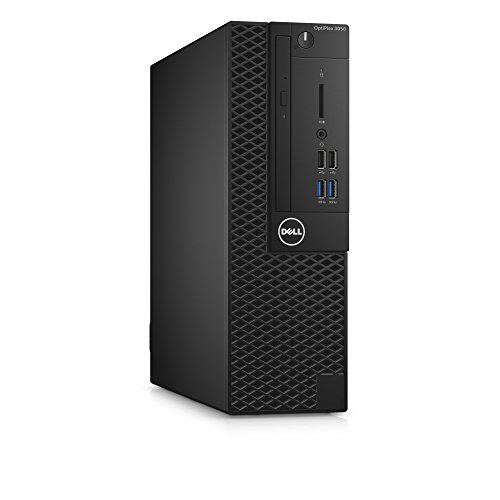
| Processor | Intel Core i5-7500 (Quad-Core, 3.4 GHz, 65W, 6MB L3 cache, 4 threads) |
| Operating System | Windows 10 Pro 64-bit |
| Memory | 8GB DDR4 SDRAM 2400MHz (1x8GB) |
| Storage | 256GB SATA SSD (2.5-inch, Class 20) |
| Graphics | Intel Integrated Graphics |
| Expansion / Compatibility | Supports Windows 10/Linux |
You notice the Dell 99K5T sitting on your desk, and the first thing that surprises you is how quiet it runs when you’re just scrolling through a browser. The little chassis doesn’t scream gaming power, but it starts up with a confident hum and a responsive kick when you open a dozen tabs at once.
The case is compact enough to tuck under a monitor stand, yet easy to access for upgrades if you need them later. It feels sturdy, and the matte finish hides fingerprints better than you’d expect.
The 8GB of RAM and 256GB SSD keep Windows 10 Pro feeling snappy for everyday tasks.
Performance-wise, the i5-7500 handles office apps, emails, and light design work without breaking a sweat. You’ll notice the Intel Integrated Graphics is enough for casual video calls and basic media playback.
It’s not a gaming rig, but it handles 1080p video smoothly.
Setup is straightforward: Windows 10 Pro preinstalled, with a clean image and essential drivers in place. The 2400MHz DDR4 memory feels snappy in daily use, and the 2.5-inch SSD delivers quick boot times and fast file access.
If you’re moving from an HDD, the upgrade path feels pleasantly simple.
What stands out is the balance of price and practicality. You get a solid business machine that can handle productivity without a lot of extra fluff.
It’s a calm, dependable workspace companion for day-to-day tasks.
If you’re juggling multiple documents, spreadsheets, and slides, you’ll appreciate its no-fuss reliability. The cooling is quiet enough for a small office or quiet home setup, which is a nice surprise in this compact form factor.
What Is Desktop Search, and Why Is It Important for Windows 10 Users?
The benefits of utilizing the best desktop search options in Windows 10 extend beyond efficiency; they also enhance organization and reduce frustration. A well-functioning search tool can help prevent data loss by making it easier to locate important documents that may otherwise be forgotten or misplaced. Additionally, various third-party desktop search applications offer advanced features such as custom indexing, file tagging, and search filters, further optimizing file retrieval.
To achieve the best desktop search experience in Windows 10, users should consider best practices such as regularly updating their indexing options, utilizing metadata for files, and exploring third-party applications like Everything or Copernic Desktop Search, which can enhance the built-in search capabilities. By combining efficient search practices with the right tools, users can significantly enhance their productivity and streamline their workflow.
What Are the Key Features That Make Desktop Search Software Effective?
Integration with cloud services keeps users connected to their files, even when stored online, thus expanding the search capabilities beyond local storage. Finally, preview features facilitate quick decision-making by allowing users to see file contents at a glance, reducing the time spent opening multiple files to find the desired information.
How Does Indexing Improve Search Efficiency in Desktop Search Tools?
Indexing significantly enhances search efficiency in desktop search tools by creating a structured database of files and their attributes.
- Faster Search Results: Indexing allows the search tool to quickly retrieve relevant files without scanning each document individually.
- Reduced Resource Use: By maintaining an index, the search tool minimizes the need for constant file access, conserving system resources.
- Enhanced Relevancy: Indexing helps prioritize and rank search results based on metadata, file types, and user preferences.
- Real-time Updates: Many indexing systems can update the index in real-time as files are added or modified, ensuring that search results are always current.
- Advanced Search Features: Indexed data enables the use of advanced search queries, such as boolean operators and filters, that can refine results more effectively.
Faster search results are achieved because the search tool accesses a pre-built index rather than sifting through each file on the disk. This means users experience significantly reduced wait times when searching for documents, images, or other file types.
Reduced resource use is a crucial benefit of indexing, as it alleviates the burden on the system by limiting unnecessary file access. This efficiency allows the computer to operate smoothly and allocate resources to other tasks while still providing quick search capabilities.
Enhanced relevancy is another key advantage, as indexing organizes files based on various attributes, such as file type, size, and last modified date, making it easier for the search tool to deliver the most pertinent results first. This organization not only improves user experience but also increases productivity by helping users find what they need more quickly.
Real-time updates ensure that the index reflects the current state of the file system, which is critical for users who frequently create, modify, or delete files. This dynamic indexing capability allows users to trust that their searches will yield the latest versions of documents or files without having to manually refresh the search tool.
Advanced search features become possible because of the structured data within the index, allowing users to employ complex search queries. This functionality can include the use of date ranges, specific file types, or keywords, all of which can significantly narrow down search results and streamline the process of finding specific information.
What Types of Files Should Your Desktop Search Software Be Able to Search?
The best desktop search software for Windows 10 should be capable of searching a variety of file types to ensure comprehensive results.
- Documents: This includes files such as Word documents (.doc, .docx), PDF files, and Excel spreadsheets (.xls, .xlsx). These formats contain textual information and are commonly used for professional and personal documentation, making it essential for search software to index and retrieve them quickly.
- Images: Image files like JPEG (.jpg), PNG (.png), and GIF (.gif) should also be searchable. Search software that can recognize and retrieve images based on metadata or embedded text allows users to find visual content alongside textual documents, enhancing overall productivity.
- Audio Files: Files such as MP3 (.mp3) and WAV (.wav) are important, particularly for users who manage music or audio recordings. The ability to search through audio files by file name or metadata like artist and album can significantly streamline the process of locating specific audio content.
- Video Files: Common video formats like MP4 (.mp4), AVI (.avi), and MKV (.mkv) should be included. Users often have large collections of video files, and the ability to search them effectively can save time, especially when searching for specific clips or movies.
- Emails: Many desktop search tools integrate with email clients, allowing searches through email files like .pst (Outlook) or .mbox (Thunderbird). This feature is crucial for professionals who rely on email for communication and need to quickly find important messages or attachments.
- Compressed Files: Files such as ZIP (.zip) and RAR (.rar) should be indexed, as they contain multiple files within a single archive. Effective search software can extract and search through the contents of these compressed files, providing easy access to stored data without needing to manually extract each file.
- System Files: This includes system and configuration files, such as .ini or .sys files. While they are not typically user-generated, being able to search through these files can help users troubleshoot system issues or locate specific configurations when necessary.
What Are the Top Desktop Search Tools Available for Windows 10?
Some of the best desktop search tools available for Windows 10 include:
- Everything: Everything is a lightning-fast search tool that indexes files and folders on your computer, allowing for near-instant results.
- Windows Search: Built into Windows 10, this native search feature integrates with File Explorer and the Start menu, providing a convenient way to find files and applications.
- Listary: Listary enhances your file browsing experience with a powerful search function that works across various file managers and applications.
- DocFetcher: DocFetcher is an open-source search tool that specializes in indexing and searching document contents, making it ideal for users who handle large amounts of text files.
- Copernic Desktop Search: This comprehensive search tool indexes all types of files and emails on your system, offering advanced filtering options and a user-friendly interface.
Everything: Everything stands out for its speed, as it builds an index of all files on your drive almost instantly. Its minimalist interface allows users to search using partial file names or extensions, making it incredibly efficient for locating files quickly.
Windows Search: As the default search tool in Windows 10, Windows Search provides a seamless experience within the operating system. It allows users to search for files, applications, and settings directly from the Start menu or File Explorer, although it may not be as fast as third-party alternatives.
Listary: Listary offers a unique feature set that enhances productivity by allowing users to search for files and folders in any file dialog or file manager. Its quick access to recent files and folders, as well as customizable search shortcuts, makes it a favorite among power users.
DocFetcher: This tool is particularly useful for those who work with large numbers of documents, as it not only indexes file names but also the content within files. DocFetcher supports various file formats and provides a powerful search mechanism for finding specific text, making it invaluable for researchers and writers.
Copernic Desktop Search: Copernic offers a robust indexing capability that allows users to find files, emails, and more across their entire system. Its advanced filtering options help narrow down search results efficiently, providing a versatile solution for users who need to manage extensive files and information.
What Unique Features Does Everything Offer to Users?
Everything offers several unique features to enhance desktop search on Windows 10:
- Instant Search Results: Everything provides near-instant search results as users type, allowing for rapid access to files and folders without delay.
- File Filtering: Users can filter their searches by file type, size, date modified, and other criteria, making it easier to locate specific items quickly.
- Real-time Indexing: The software indexes files in real-time, ensuring that users always have the most current information available, even when files are added or deleted.
- Lightweight and Fast: Everything is designed to be lightweight, consuming minimal system resources while delivering high performance, making it suitable for various system configurations.
- Customizable User Interface: The interface can be customized with different themes and layouts, allowing users to tailor the look and feel to their preference.
- Integration with Windows Explorer: Everything can integrate seamlessly with Windows Explorer, enabling users to open files directly from search results with a simple click.
Instant Search Results ensure that as users begin typing their queries, relevant files appear almost immediately, which significantly speeds up the searching process and enhances productivity. The ability to see results in real-time allows users to refine their queries on-the-fly without waiting for the search to complete.
File Filtering is another critical feature that allows users to narrow down their search results based on specific parameters, such as file extensions or modification dates. This capability is particularly useful when dealing with large quantities of files, as it minimizes the time spent scrolling through irrelevant results.
Real-time Indexing means that Everything continuously updates its index whenever files are added, removed, or modified on the system. This ensures that users can find the most up-to-date information without needing to manually refresh the index.
The software’s Lightweight and Fast design is intended to run efficiently even on older hardware, making it accessible to a broader range of users. This efficiency is crucial for maintaining system performance while providing powerful search capabilities.
Customizable User Interface allows users to personalize their experience, which can lead to increased satisfaction and efficiency. By adjusting themes and layouts, users can create an environment that feels comfortable and familiar.
Integration with Windows Explorer enhances usability by allowing users to open files directly from the search results, streamlining the workflow. This feature eliminates extra steps that would typically be required to navigate to a file’s location manually.
How Does Listary Enhance Workflow Through Search Functionality?
Customizable keyboard shortcuts contribute to Listary’s efficiency by letting users tailor their search experience to their specific workflow needs, enabling them to perform tasks faster and with greater ease.
Why Is DocFetcher Considered a Powerful Search Tool for File Management?
DocFetcher is considered a powerful search tool for file management because it allows users to quickly and efficiently locate files and documents across various formats and directories on their systems, significantly enhancing productivity.
According to a review by TechRadar, DocFetcher offers advanced indexing capabilities and supports numerous file formats, including PDFs, Microsoft Office documents, and even emails. This versatility makes it one of the best desktop search tools for Windows 10 as it can handle diverse types of content that users commonly need to access.
The underlying mechanism that contributes to DocFetcher’s effectiveness is its ability to create an index of files in specified directories, allowing for rapid search results. When a user queries a term, the tool searches the indexed data rather than scanning each file individually, which drastically reduces the time required to find relevant documents. Research published in the Journal of Information Science highlights that efficient indexing is crucial for quick retrieval in desktop search applications, emphasizing the importance of this feature in enhancing user experience.
Furthermore, the search functionality of DocFetcher employs fuzzy searching, which allows for finding approximate matches of search terms. This is particularly useful when users remember partial terms or make typographical errors. By leveraging algorithms that accommodate these inaccuracies, DocFetcher not only improves search accuracy but also broadens the scope of results, aligning with findings from usability studies that stress the importance of accommodating user input variability in search interfaces.
How Do Users Evaluate Their Experiences with Different Desktop Search Tools?
Relevance: The relevance of search results is vital; users want to see the most pertinent files at the top of their search results. If a tool frequently provides irrelevant or off-topic results, users are likely to abandon it in favor of more accurate options.
Ease of Use: A clean and intuitive interface is essential for a positive user experience. If a search tool is complicated or requires extensive training to use effectively, users may become frustrated and opt for simpler alternatives.
Integration: Tools that seamlessly integrate with other software, such as email clients or cloud storage services, are more appealing because they enhance productivity. Users appreciate when they can access relevant files without switching between multiple applications.
Customization: The ability to customize search settings, such as file types, indexing options, and search filters, allows users to tailor the tool to their specific needs. This level of personalization can significantly improve user satisfaction and efficiency in finding files.
What Future Innovations Can We Expect in Desktop Search Technology?
The future of desktop search technology is poised to evolve significantly, particularly for Windows 10 users, enhancing productivity and user experience.
- AI-Powered Search Algorithms: Future innovations will likely incorporate advanced artificial intelligence to improve search accuracy and relevance. These algorithms will learn user preferences over time, allowing for personalized search results that are more aligned with individual workflows and habits.
- Natural Language Processing (NLP): With advancements in NLP, users will be able to perform searches using conversational queries. This means instead of typing in keywords, users can ask questions in natural language, making the search process more intuitive and efficient.
- Integration with Cloud Services: Future desktop search technologies may offer deeper integration with cloud storage solutions. This will enable users to search for files and data not just on their local machines but also across various cloud platforms, streamlining access to information.
- Enhanced Search Filters: Innovations will likely include more sophisticated filtering options, allowing users to refine search results based on various criteria such as file type, date modified, or even content type. This will improve the ability to quickly locate specific documents or media files among large datasets.
- Visual and Voice Search Capabilities: Future desktop search tools may leverage visual recognition, allowing users to search using images or screenshots. Additionally, voice search features will enhance accessibility and speed, enabling hands-free interactions with the desktop search interface.
- Cross-Platform Compatibility: Future developments may focus on creating search applications that seamlessly operate across multiple devices and operating systems. This will ensure that users have consistent access to their search capabilities, whether they are on a desktop, tablet, or mobile device.